 AIREITER
Type what you want changed, attach a photo, and an AI photo editor rewrites the image in seconds. Below are 16 copy-paste AI photo editor prompts that actually do what you asked, each one run on a real model. Start with this one, a background swap: same person, same face, new room.
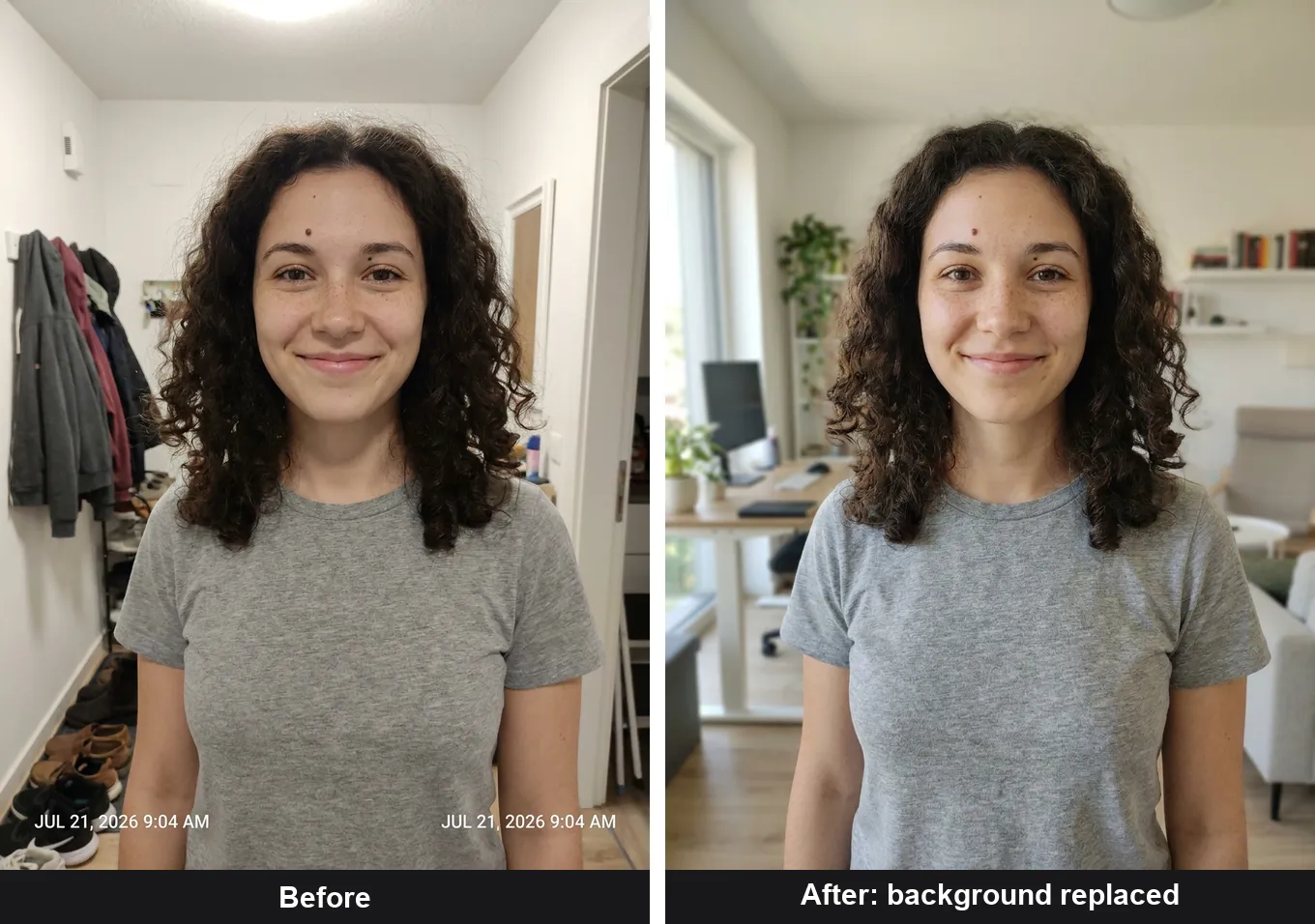
That result comes down to a single idea that decides most edits with a person in them. An AI photo editor prompt is not a description of the picture you want. It is a set of instructions about what to change and what to leave alone. Skip the second half and the model quietly redecorates the parts you never mentioned, usually the face.
Every before/after on this page is a real edit, not a mockup. I ran the prompts on two image-editing models, Google's Nano Banana Pro and ByteDance's Seedream 5 Pro, through an API on 21 July 2026. Each Nano Banana Pro edit cost about 6 credits (roughly $0.06) and finished in 20 to 95 seconds; the pictures are the raw model outputs, resized only to sit side by side. It is a small hands-on sample, not a benchmark.
What makes an editing prompt work
Editing and generating are different jobs. A generation prompt builds an image from nothing, so more description helps. An editing prompt starts from a photo that is already correct, so extra description is a liability: anything you re-describe, the model feels free to re-draw.
A reliable AI photo editor prompt has five parts, and most weak prompts are missing the last two:
1. Action: replace, remove, restore, recolor, relight, extend. 2. Target: the background, the sky, the shirt, the mug. 3. Desired look: bright home office, matte black, golden-hour light. 4. Keep clause: what must stay identical. 5. Negative constraint: what the model must not do, such as beautify, reshape, or add people.
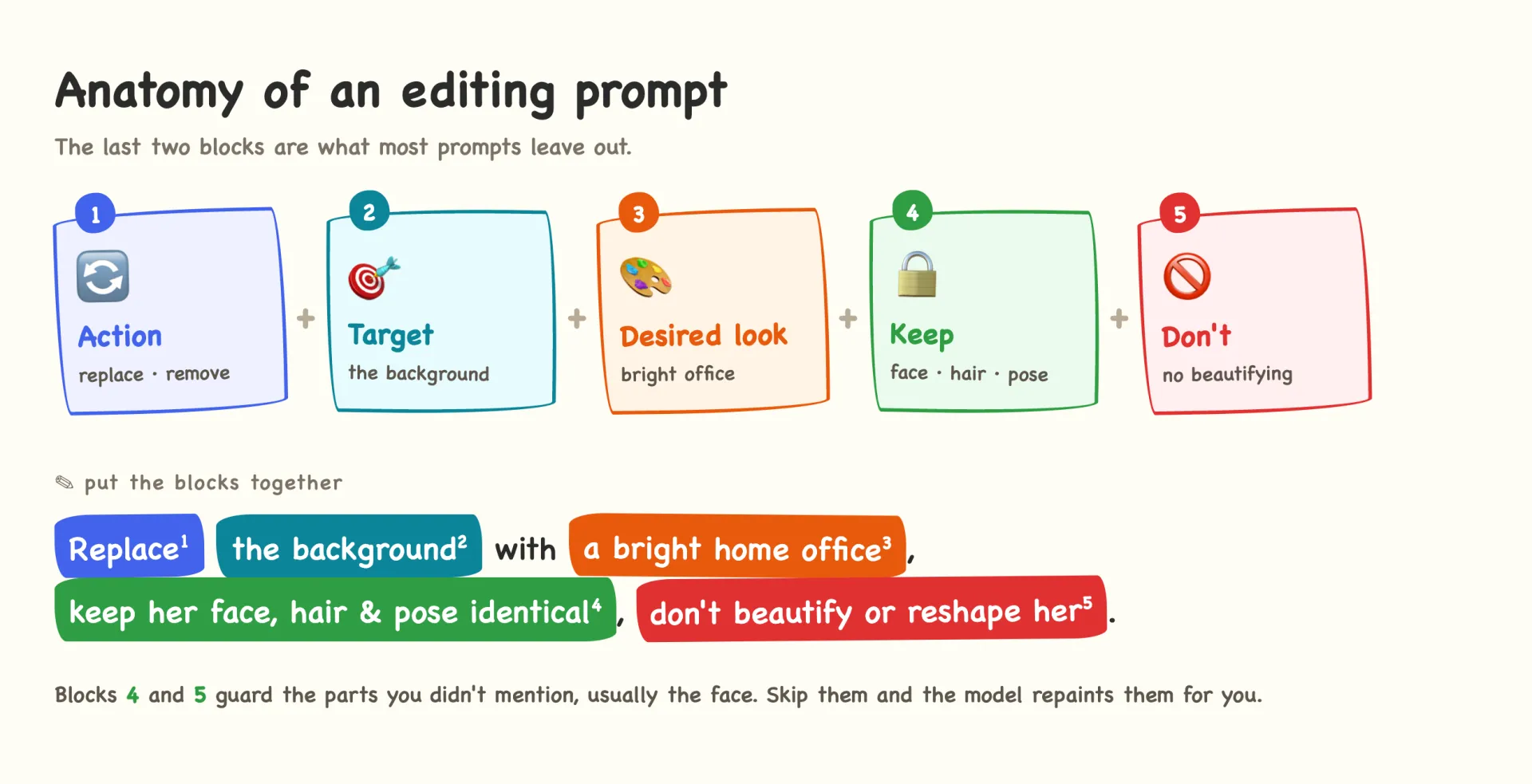
Written out, that is one clean sentence plus a keep clause:
Replace the background with a bright modern home office with a large
window and soft daylight. Keep the person's face, hair, expression, pose,
and clothing exactly identical, and match the new light onto the subject.
Do not beautify or reshape them.
The identity lock: one clause that stops faces from drifting
The most common complaint about photo editors is simple: I only wanted the background changed, so why does my face look different? On Reddit, people editing their own photos trade whole clauses built to pin identity down, naming facial structure, hairline, freckles, moles, and scars one by one. That specificity is what makes them work.
Paste this at the end of any edit that includes a person:
Keep the person's face, facial structure, freckles, moles, hairline, skin
texture, and expression exactly the same. Do not beautify, smooth, slim,
or restyle them. Only change what I asked for above.
Naming specific features (the freckles, the mole above the left eyebrow) works better than a vague "keep her the same," because it gives the model concrete anchors to protect. The subject in the photos above kept her freckles and that eyebrow mole through every edit because the prompt listed them.
The clause matters more on some models than others. Strong editors preserve a face fairly well even without it, though they tend to re-crop and lightly polish. On models that like to "improve" people, dropping the clause is where you get smoother skin, a slimmer jaw, and a face that is no longer quite yours. Adding it costs nothing, so it goes on every edit involving a person.
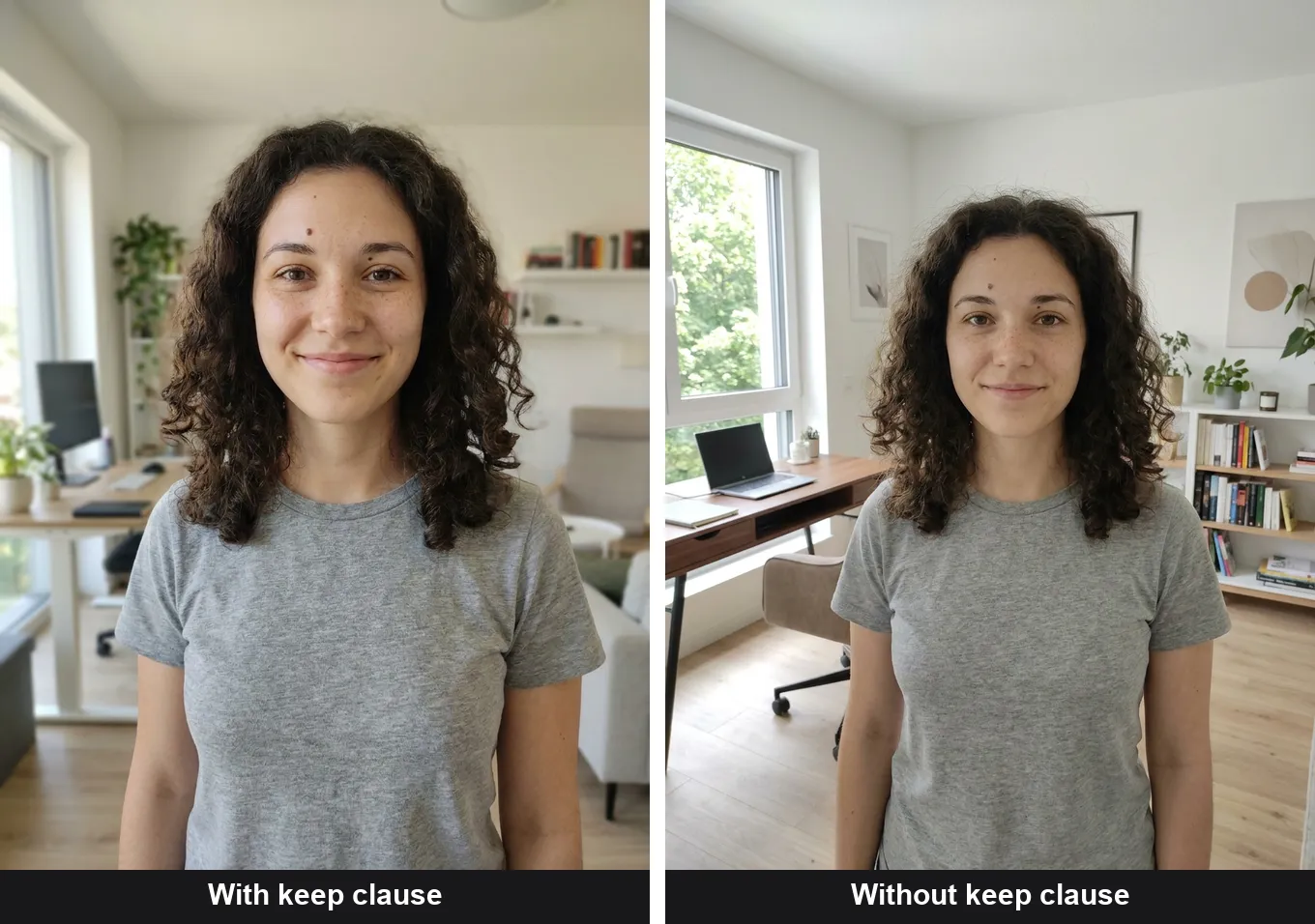
Above is that test: same photo, same model (Nano Banana Pro), same background-swap prompt, run once with the keep clause and once without. Both versions kept her freckles and the eyebrow mole. The visible difference is that the one without the clause re-cropped tighter and quietly smoothed her skin. On a model that beautifies harder, that same gap becomes a different face.
16 copy-paste prompts by editing task
These AI photo editor prompts are grouped by the edit you are trying to make. Fill in the brackets, keep the structure. For anything with a person or a product in it, append the keep clause from above.
1–2. Replace or clean up the background
1. Replace the background with [a bright modern home office with a large
   window]. Keep the person's face, hair, expression, pose, and clothing
   identical. Match the new ambient light onto them naturally.

2. Keep the person exactly as-is and replace only the background behind
   them with a clean, out-of-focus neutral studio grey. Do not change
   their edges, hair, or lighting on the face.
Prompt 1 produced the background swap at the top of this page, moving the subject from a hallway to an office and leaving her untouched.
3. Relight into a studio headshot
Relight this photo as a professional studio headshot: soft key light from
the front-left, gentle fill, a subtle hair rim light, and a clean dark-grey
seamless backdrop. Keep the face, freckles, hair, and clothing identical.
Change only the lighting and background.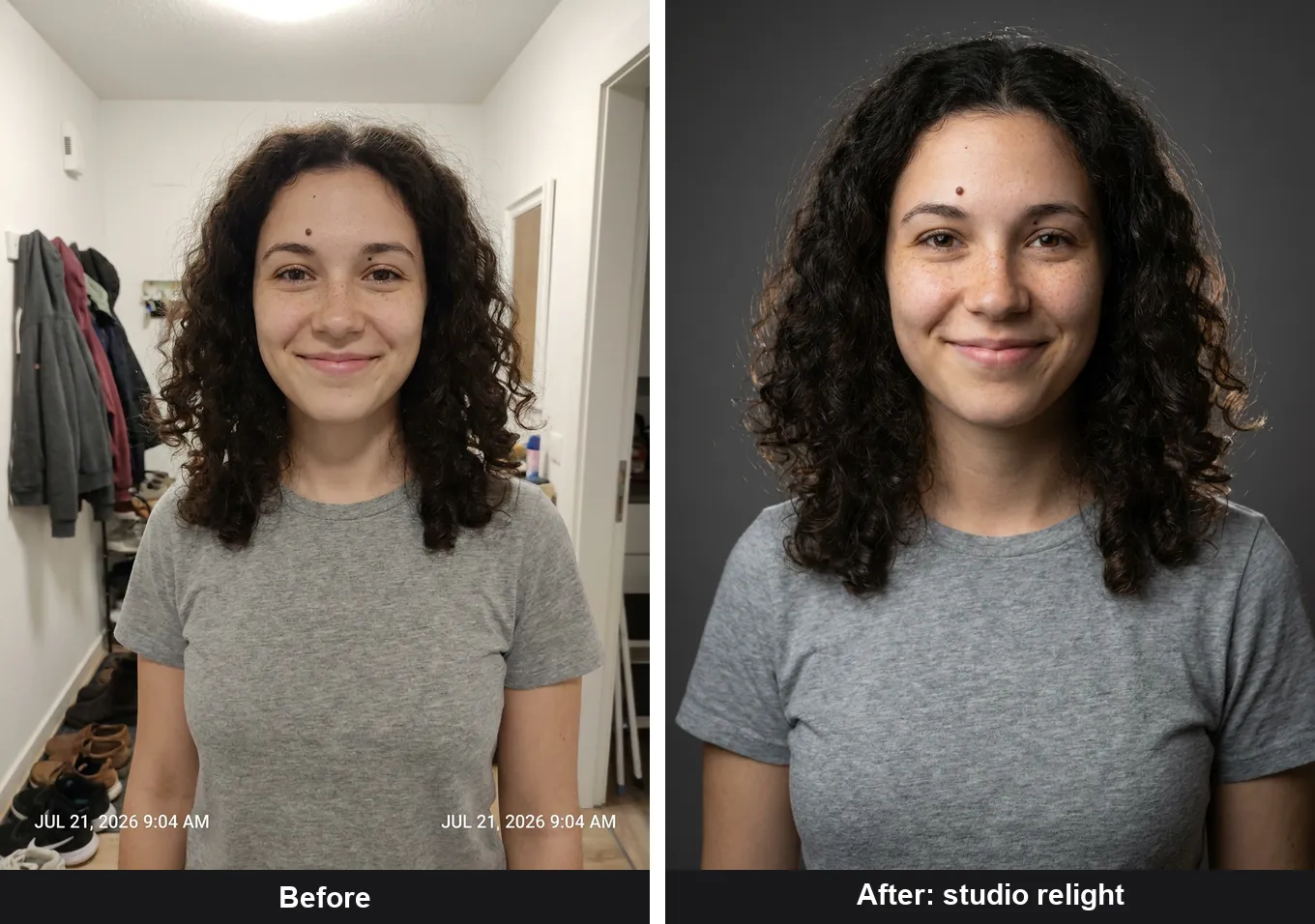
The input was a flat-lit phone snapshot. The prompt only asked for light and backdrop, so the person stayed the same while the photo started to look shot on purpose.
4. Restore an old or damaged photo
Restore this damaged photo. Remove creases, scratches, and dust, and
rebuild any torn or missing areas naturally. Correct the faded color cast
to balanced, natural color with proper contrast. Keep every person's face,
expression, clothing, and the setting exactly the same. Do not add people
or invent details that were not there.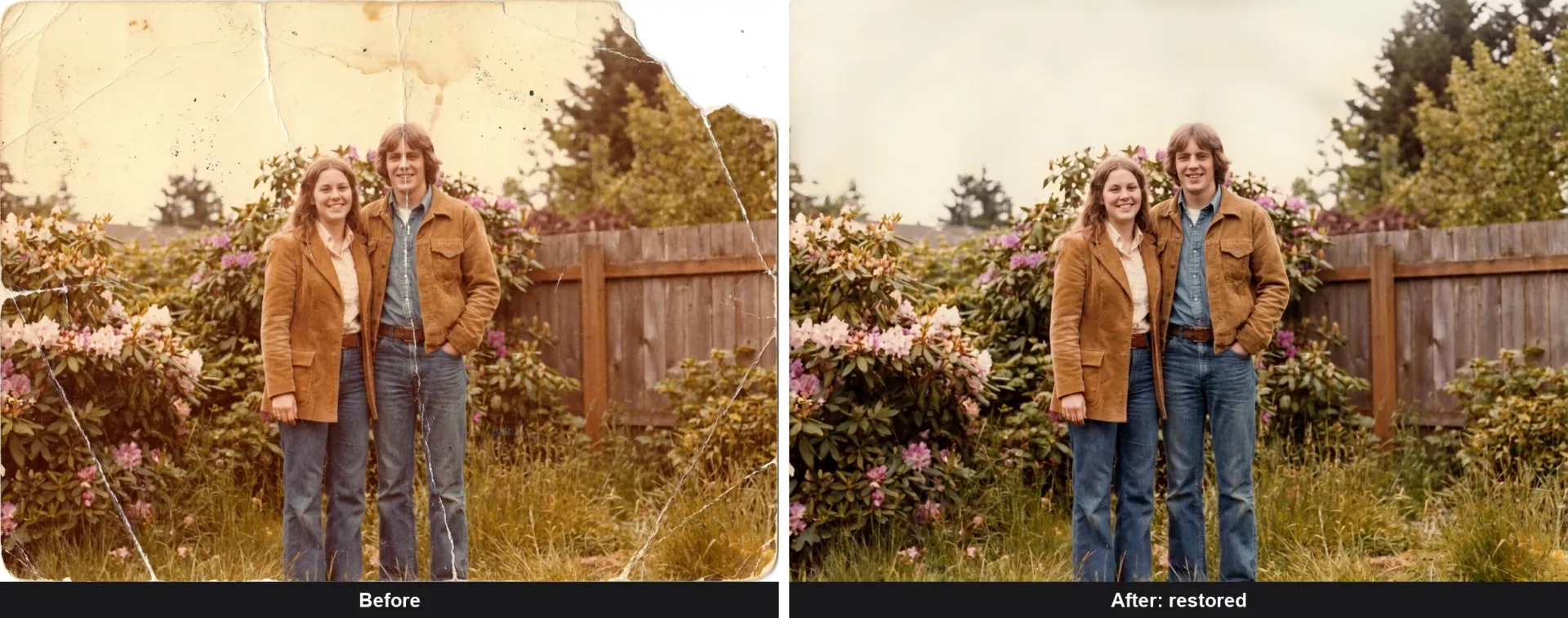
This is where the "do not invent details" line earns its place. Restoration models want to fill gaps, and near a face that means inventing features. Telling the model to rebuild only what was there reduces that invention, though it cannot make a reconstructed area historically accurate. Check any rebuilt face against another photo of the person.
5. Clean up a product photo for e-commerce
Place this [product] on a clean, seamless white studio background for an
e-commerce listing. Remove all clutter. Add soft, even lighting and a
subtle contact shadow. Keep the product's exact shape, color, texture,
and proportions. Do not restyle or replace it.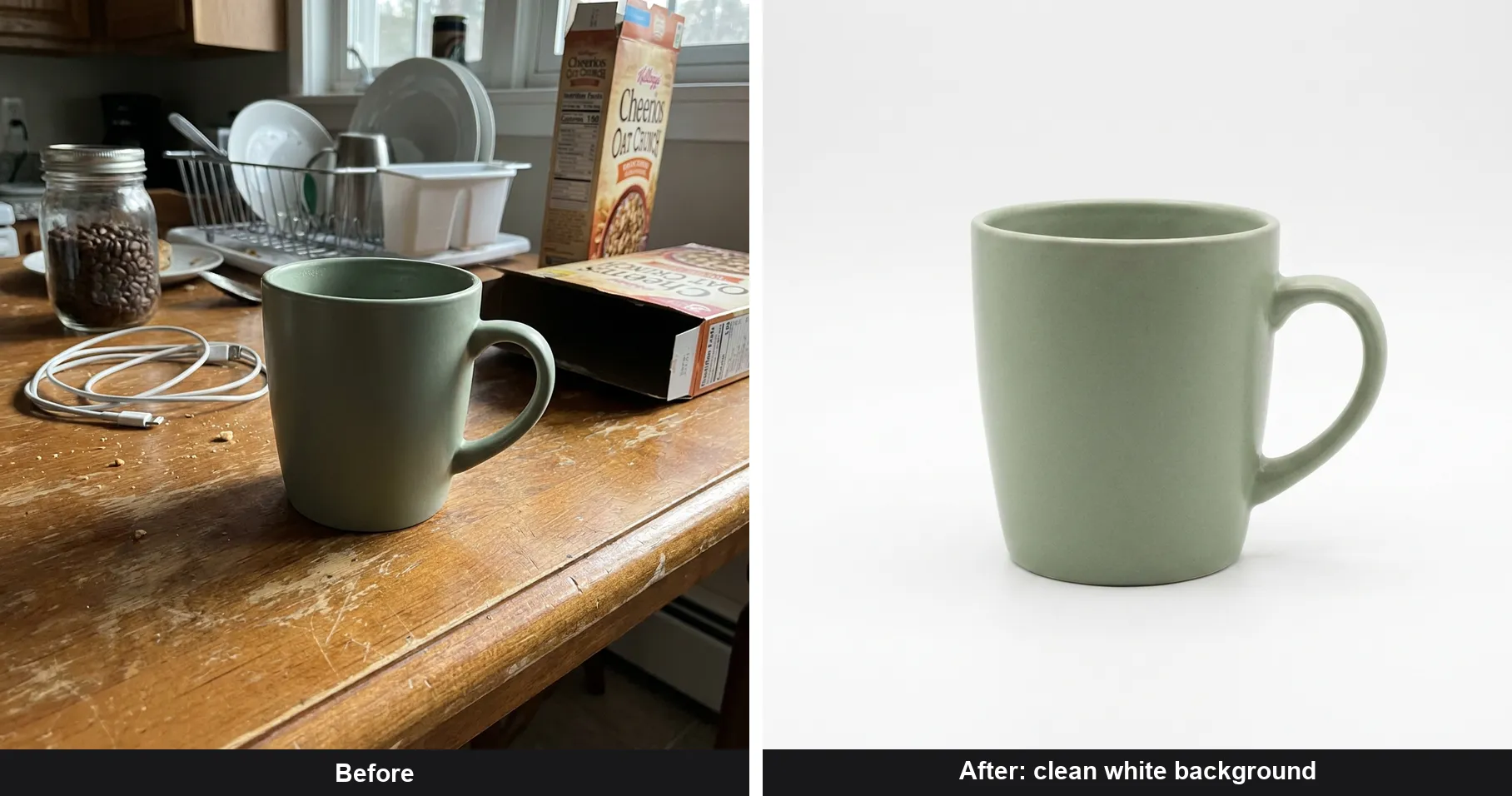
A phone photo of a mug on a cluttered table became a white-background product shot. The keep clause matters as much here as with faces: without it, "clean product photo" invites the model to swap in a glossier, generic mug that is not the one you are selling. One caution for live listings: the model relights the product and rebuilds texture, and it can quietly alter a logo or label, so check the result against the physical item before you publish it.
6. Remove an object or a person
Remove [the person on the left / the trash can / the reflection] from this
photo. Reconstruct the area behind it to match the surrounding
[wall / grass / sky] seamlessly. Keep everything else, including the
lighting and the main subject, unchanged.
7–8. Change one thing, keep the rest
7. Change only [the mug's color] to [matte black]. Keep its shape,
   position, lighting, and the entire rest of the photo identical.

8. Change the person's shirt to [a plain white button-down]. Keep their
   face, hair, pose, body, and the background exactly the same.
Single-attribute edits are where AI editors are strongest and where over-writing hurts most. Name the one thing that changes, then lock everything else.
9. Restyle without changing the content
Restyle this photo with [a cinematic teal-and-orange grade, soft film grain,
lifted shadows], like a still from a modern drama. Keep the subject,
composition, and all facial features identical. Change only color and mood,
not content.
10. Add an object that matches the scene
Add [a steaming cup of coffee] to [the empty desk]. Match the perspective,
lighting, and shadow direction of the scene so it looks like it was there.
Keep everything else identical.
11. Remove text, watermarks, or timestamps
Remove the [watermark / date stamp / on-image text] from this photo and
reconstruct the area behind it to match the surroundings. Keep everything
else identical.
12. Extend the frame (outpaint)
Extend this photo to a [16:9] frame, continuing the existing background
naturally on both sides. Keep the subject and all existing content
unchanged; only add new background at the edges.
13–16. More edits that reuse the same structure
13. Replace the sky with [a dramatic sunset / a clear blue sky]. Keep the
    foreground, subject, and their lighting consistent with the new sky.

14. Colorize this black-and-white photo with natural, realistic color.
    Keep every face, feature, and detail exactly as-is; do not restyle.

15. Restage this empty room with [a modern sofa, a rug, and a floor lamp].
    Keep the walls, windows, floor, and proportions of the room unchanged.

16. Change the season in this photo to [autumn], adjusting foliage color
    and daylight. Keep the people, buildings, and composition identical.
Trending transformation prompts
The edits people actually share are transformations, not fixes. They use the same structure with one change: instead of "keep everything identical," you name the few features that must stay recognizable and let the rest go. Here are two, run on the same photo from the top of this page:
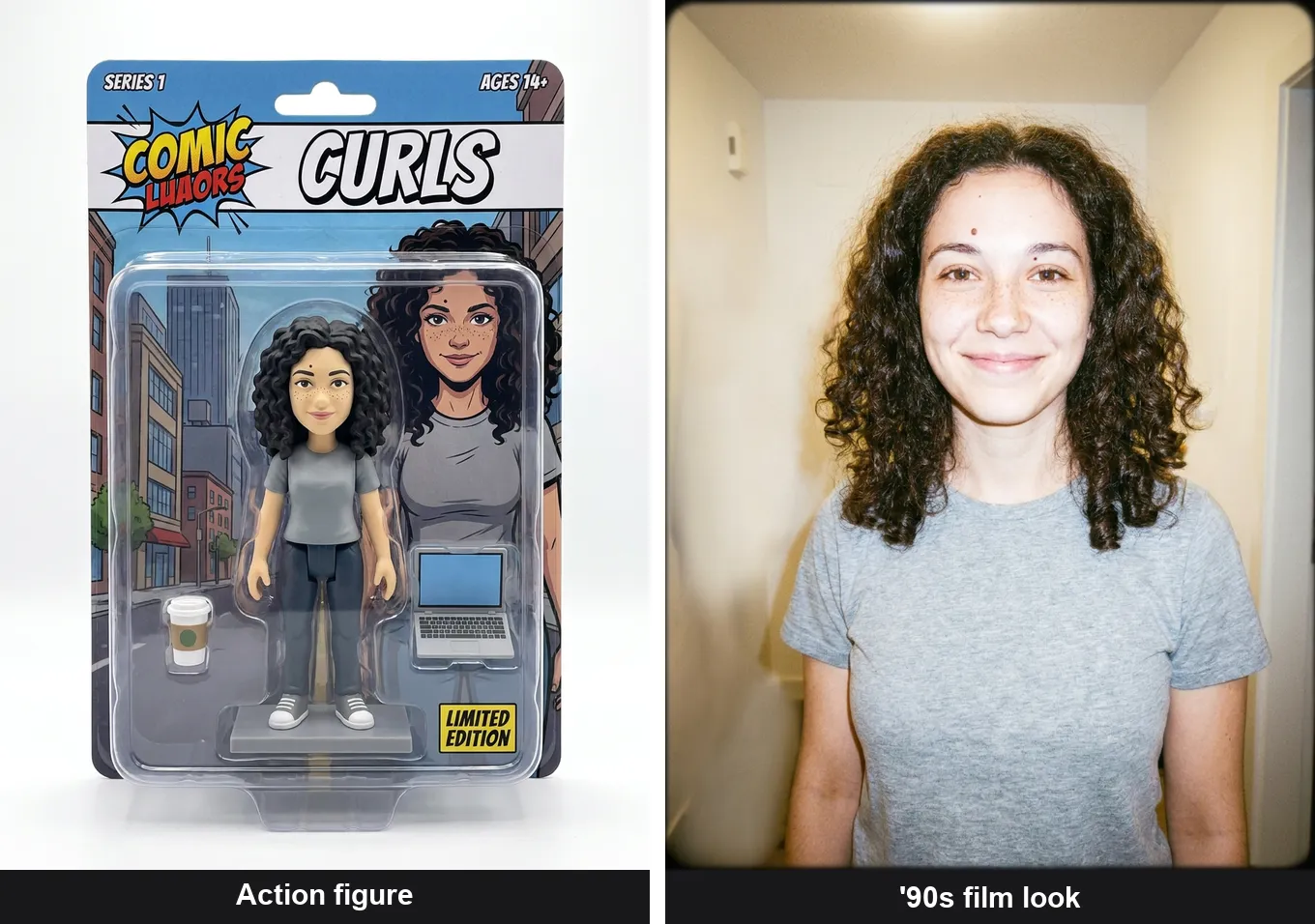
Collectible action figure:
Turn the person in this photo into a collectible action figure of
themselves, sealed in blister packaging on a printed backer card, with a
brand logo and a couple of mini accessories in the tray. Keep them
recognizable: same hair, face, and outfit. Studio product-photo look.
1990s film portrait:
Restyle this photo as a 1990s analog film portrait: direct on-camera
flash, slight overexposure, warm faded colors, fine grain, and a plain
wall background. Keep the face, hair, and features recognizable.
Two more in the same family:
Turn this into a soft plush-toy version of the person, keeping the hair,
colors, and outfit recognizable, on a plain studio background.

Restyle this as a glossy magazine-cover portrait with studio lighting and
cover text, keeping the face and hair recognizable.
The more a prompt restyles, the looser identity gets. Name the two or three features that keep the person recognizable, the hair, an accessory, the outfit, and check the result. If the face has to stay exact, use the identity-lock edits above instead.
Why your edits get ignored, and how to phrase around it
A working prompt still fails if the model runs it in the wrong order or overrides you. Three habits prevent most of that.
Some models rewrite your prompt before running it. Users have watched Meta AI generate a correct preview, then announce it is "rewriting the prompt and adding a bit more lighting," and hand back an image that no longer matches. You cannot stop the rewriting, but you can fence it in: end with Do not add, remove, or change anything I did not mention.
Change one thing at a time. A prompt that swaps the background, fixes the hair, and brightens the photo at once gives the model room to renegotiate all three. Run them as separate edits, checking between each, so it stays obvious which instruction broke things.
Keep prompts short and structural. Long, flowery prompts read as creative license; a short instruction with a hard keep clause reads as a constraint. If identity still slips, feed the original back in as a reference image for the model to match.
Which model to run these prompts on
The same prompt behaves differently across editors, so the model is part of the recipe. Below is the identical background-swap prompt, with the same keep clause, on Nano Banana Pro and on Seedream 5 Pro:
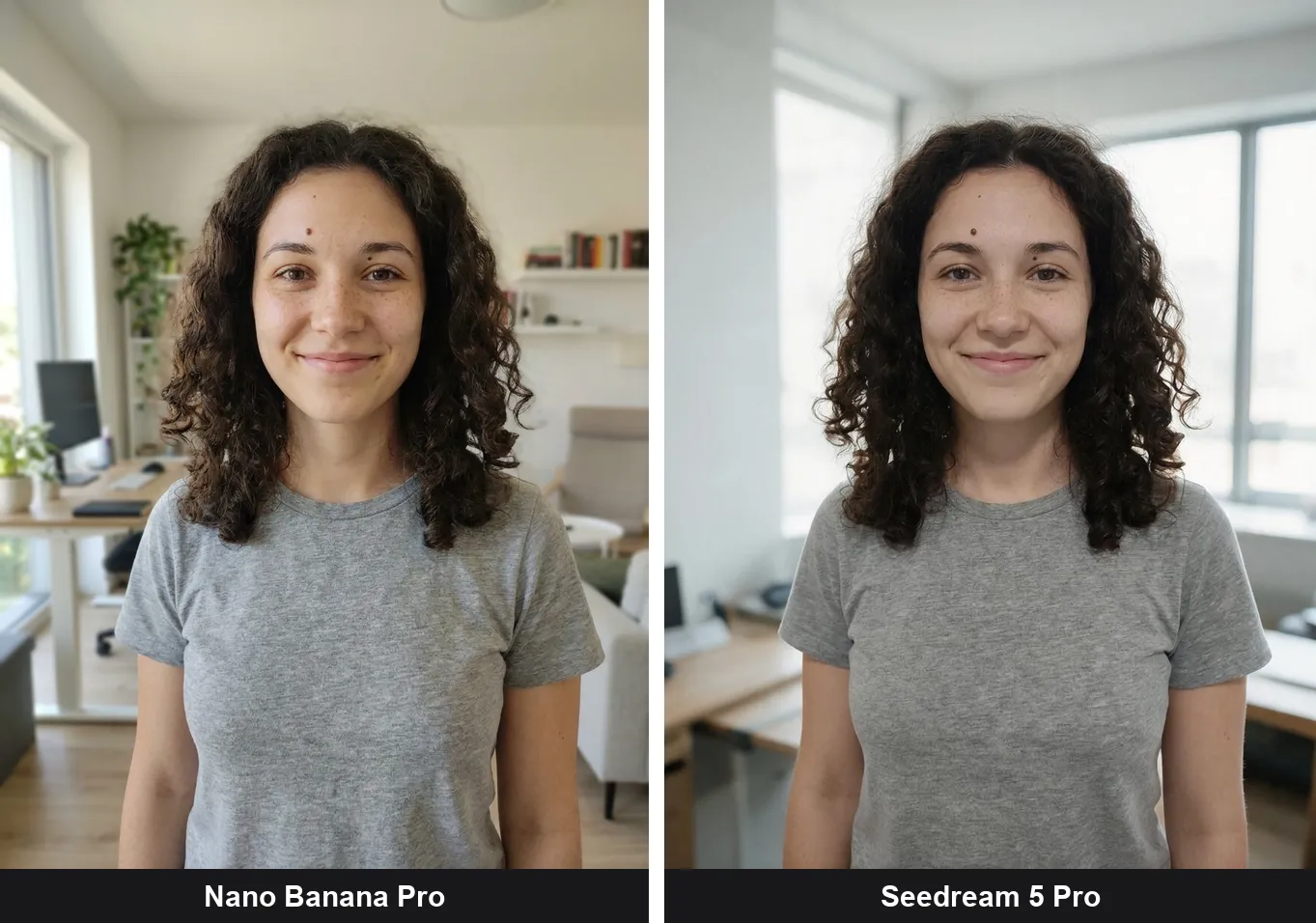
Both held her identity: the mole, the freckles, and the curls survived on each (there is more on that gap in this Nano Banana 2 vs Seedream 5 comparison). What changed was the character of the result.
- Nano Banana Pro kept the candid, slightly imperfect snapshot look. Reach for it when the edit has to pass as the original photo: portraits you present as untouched, documentary shots, product listings.
- Seedream 5 Pro kept the same markers but smoothed the skin toward a glossier studio portrait. Reach for it when a cleaner, more polished look is the point: marketing and social crops.
Neither is wrong. The rule that holds either way: on a model that leans toward beautifying, the identity-lock clause is not optional.
That comparison is nano_banana_pro against seedream_v5_pro, same input and same prompt, on 21 July 2026; Seedream cost about 7.5 credits per edit to Nano Banana Pro's 6.
You do not need a separate account for each. Editing models like Nano Banana Pro, Seedream 5, and GPT Image are reachable through a single API on platforms such as AIReiter, which is how the edits here were made, at about $0.06 an edit. For deeper prompt patterns on one model, the Nano Banana Pro prompt guide goes further than the starters here.
FAQ
What is an AI photo editor prompt?
A short text instruction that tells an AI model how to change an existing photo, such as "replace the background with a plain white studio wall." Unlike an image generation prompt, which builds a picture from scratch, an editing prompt modifies a photo you upload and should say clearly what to keep as well as what to change.
Can I copy and paste these prompts into ChatGPT?
Yes. These prompts work in most tools that edit an uploaded image from text, including ChatGPT's image tools, Gemini, and dedicated editors, though exact syntax and how strictly each model follows instructions vary. Paste the prompt, attach your photo, and add the identity-lock clause if a person is in frame. Wording that fixes one thing at a time transfers most cleanly across tools.
Is there a free AI photo editor with prompts?
Several tools offer a free tier for prompt-based editing, usually with limits on resolution, watermarks, or the number of edits per day. Free tiers are fine for testing prompts and casual one-off edits. If you are running many edits or need full resolution without watermarks, API access to an editing model runs a few cents per image, which is often the more practical route once you are past casual use.
What are the most popular AI photo editor prompts right now?
The edits that spread are transformations rather than fixes: collectible action figures, plush-toy versions, retro film-flash portraits, and magazine-cover styling. They use the same prompt structure but name only the features that must stay recognizable, since the point is to restyle everything else.
Why does the AI change my face when I only wanted the background changed?
Because the prompt did not tell it not to. Editing models re-render the whole frame, and without a keep clause they treat the face as fair game to "improve." Add an instruction that names the features to preserve and forbids beautifying, and restrict the edit to the background only.
What is the best prompt to keep identity consistent?
End every edit with a keep clause that lists specific features: "Keep the face, facial structure, freckles, moles, hairline, and expression exactly the same; do not beautify, smooth, or slim." Naming concrete features gives the model anchors to protect. For a face you plan to present as unedited, run the edit and compare it against the original at full size before using it, since drift shows up first in the eyes and jawline. If a model keeps softening the face, switch to one that preserves texture or feed the original back as a reference image.
Related reading: Swapping a person into a photo with Nano Banana Pro and the Nano Banana 2 photo editor guide.