 AIREITER
Kimi Code Desktop puts an agent, diffs, a terminal, and a browser in one window. Its separate five-hour weekly limit and uneven early feedback make it a pilot candidate, not an automatic replacement for an established coding setup.
Kimi Code Desktop review: the answer in one table
Kimi Code Desktop is best for developers who want a visual, inspectable agent workflow on Windows or macOS. Developers who need Linux, predictable unlimited use, or mature independent validation should keep their current tool while testing it on bounded tasks.
| Question | Short answer |
|---|---|
| Is it officially released? | Yes. Moonshot AI says Desktop launched on September 17, 2026. |
| Supported systems | Windows, macOS Apple Silicon, and macOS Intel. No official Linux Desktop download is listed. |
| Separate Desktop license | No separate license is listed; official Kimi models require an eligible membership. |
| Entry membership price | ¥49/month on the official mainland-China plan page. |
| Usage catch | Kimi products share one credit pool, while Kimi Code also has a separate five-hour-per-week limit. |
| Can it use other models? | Yes. Users can add a provider with an API key, base URL, protocol, and model details. |
| Best reason to try it | Visible tool calls, changes, approvals, terminal output, and browser context in one interface. |
| Main reason to wait | It is new, user reports are mixed, and official pages do not publish task-level reliability or cost benchmarks. |
What Kimi Code Desktop actually is
Kimi Code Desktop is the graphical client for the Kimi Code agent system, carrying the Kimi Code CLI agent core into a project interface for conversations, file changes, previews, terminal work, and browser checks.
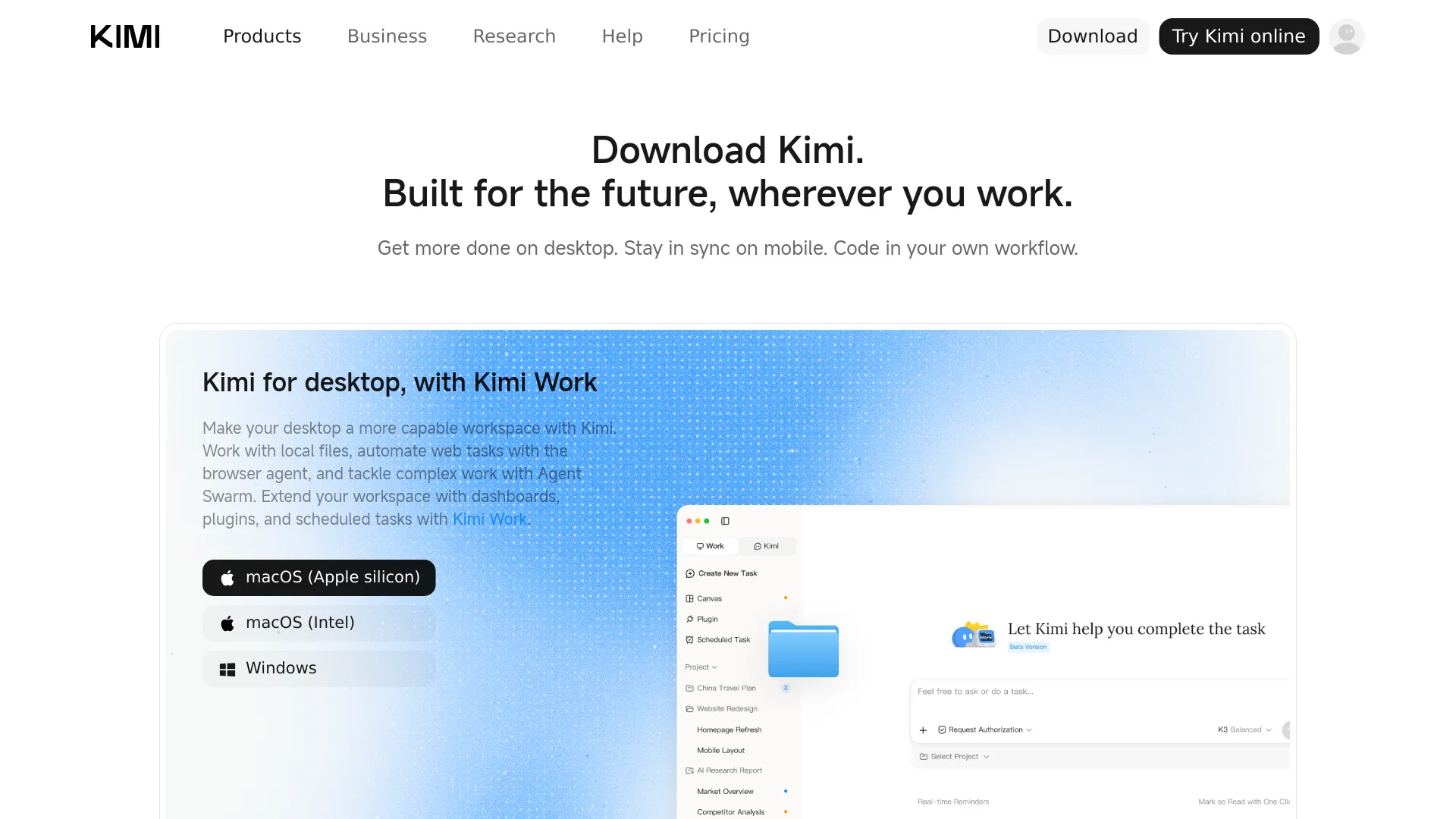
Moonshot AI's official release notes date the Desktop launch to September 17, 2026 and list downloads for Windows, macOS Apple Silicon, and macOS Intel. The Quick Start documentation does not list a Linux build; Linux users can still use the terminal-oriented CLI.
| Name | What it is |
|---|---|
| Kimi Code Desktop | Graphical client for local projects and agent sessions |
| Kimi Code CLI | Terminal-first interface suited to scripts and automation |
| Kimi K3 or another Kimi model | A model that can power the agent |
| Kimi chat app | General-purpose chat rather than a project coding workspace |
Desktop and CLI can coexist on one machine. Official documentation says they share some account, model, provider, and plugin settings, but it does not promise full session or configuration parity.
The workflow features that matter in practice
Plan, Goal, and Swarm modes
Plan mode asks the agent to propose an approach before changing files. Goal mode maintains a longer-running objective, while Swarm can split independent work across subagents; the official Quick Start also provides /plan, /goal, and /swarm commands.
These modes change task management, and Swarm may increase consumption because multiple agent paths can process context and produce output.
Visible actions and approval controls
Desktop displays tool calls, thinking, and files changed during a turn. Its three permission modes are:
| Mode | Behavior | Sensible use |
|---|---|---|
| Always Ask | Requests approval for operations that require it | First run and unfamiliar repositories |
| Ask When Needed | Reduces repeated prompts while retaining selected approvals | Known projects after initial testing |
| Never Ask | Proceeds without proactive approval prompts | Isolated, disposable environments only |
Moonshot AI explicitly recommends Always Ask for a first session or unfamiliar project. Approval cards may show a command, file change, or plan, so check the exact command and path rather than approving by habit.
Browser, annotations, diffs, and terminal
The built-in browser keeps tabs with the session and shares page context with the agent. Users can annotate screenshots, select text, mention files with @, or pick a webpage element, then inspect the patch through the Changes panel, file previews, terminal, and rendered page.
Official models or your own provider
Official Kimi models depend on membership entitlements. The app also accepts a third-party provider configuration containing an API key, base URL, API protocol, and model information, after which the documentation recommends a read-only verification task.
BYO-provider support widens model choice but creates a separate bill; the official setup page publishes no compatibility matrix for every provider or model feature.
Kimi Code Desktop pricing, credits, and platform limits
Kimi Code Desktop does not have a separately listed app fee, but official Kimi-model access is tied to membership. Kimi's current mainland-China membership page lists four monthly plans and says Kimi Code is available on all four.
| Plan | Monthly price | Relative agent credits | Selected limits/features |
|---|---|---|---|
| Andante | ¥49 | Base | 1 parallel agent task; no Goal Mode or Agent Swarm |
| Moderato | ¥99 | 2× | 2 parallel tasks; Agent Swarm with 2 concurrent subtasks |
| Allegretto | ¥199 | 4× | Goal Mode; 4 Swarm subtasks |
| Allegro | ¥699 | 10× | 4 parallel tasks; 8 Swarm subtasks; 50 GB project storage |
The official membership page states that all Kimi products draw from one shared credit pool and that deductions depend on actual token use. It also gives Kimi Code a separate five-hour-per-week usage limit, even on the highest plan.
A developer can have credits remaining but still encounter the Kimi Code time limit. Heavy Code use can also reduce credits available for Kimi Work, Deep Research, PPT creation, or other Kimi features.
The same page estimates that writing a piece of code may consume roughly 0.5% to 2% of monthly credits, but it does not publish absolute credit quantities. Repository size, retries, context length, parallel agents, and generated output make cost difficult to predict from plan labels alone.
Platform support is clearer:
- Windows has an official Desktop download.
- macOS has separate Apple Silicon and Intel downloads.
- Linux has no official Desktop download listed; use the CLI if Linux is required.
- Minimum RAM, storage, CPU, and supported OS versions are not specified in the Desktop Quick Start.
What early users like—and where they hit friction
Early user feedback favors the unified workflow but does not establish reliable performance across large repositories. Repeated positives include the browser, visible diffs, agent activity, and one-window workflow; negatives include launch bugs, rough edges, token use, and weaker experiences with non-Kimi models.
Developer @adolandev described the integration rather than making a benchmark claim:
“Having the browser, diffs, and agent activity in one place makes the workflow feel cohesive while keeping the interface out of the way.” — @adolandev on X
@Jason_Young1231 called the initial completion level high and highlighted the Kimi Datasource plugin. In contrast, @realchendahuang described the desktop client as rough, while @Jackyli05 said the experience improved materially with Kimi's own model.
@liruifengv characterized the rapid 1.0.2 update as fixing “tons of bugs.” Moonshot AI was iterating quickly, but the launch build had meaningful roughness.
These are individual observations, not controlled tests; no reproducible pass rates, latency data, or cost-per-accepted-change benchmarks were found.
A safe 30-minute Kimi Code Desktop pilot
Test whether Desktop reduces accepted-change time on a disposable branch, with Always Ask enabled and clear acceptance criteria.
- Start read-only, then request a plan. Ask the agent to map one module and its tests before proposing a fix for a test-backed bug.
- Inspect scope and run the tests. Review commands, affected files, the final diff, and terminal output; keep secrets and deployment credentials outside the workspace.
- Try one visual change if relevant. Use browser annotation, verify the rendered page, and reject a patch that only fits one viewport.
- Record four numbers. Track elapsed time, failed attempts, approximate credits consumed, and human correction time.
Stop if the agent touches unrelated files, retries without progress, consumes an unreasonable share of credits, or needs more correction time than the same task in your current tool.
Kimi Code Desktop FAQ
Is Kimi Code Desktop free?
The client has no separately listed Desktop price, but official Kimi models require an eligible membership. Users can also configure a third-party provider, which may create separate API charges.
Does Kimi Code Desktop support Linux?
No official Linux Desktop download appears in the release notes or Quick Start. Linux developers can use Kimi Code CLI instead.
What is the difference between Kimi Code Desktop and CLI?
Desktop emphasizes graphical project sessions, diffs, previews, a browser, and terminal verification. CLI is better suited to terminal-first workflows, scripts, and deeper automation; both use the Kimi Code agent core and share some local settings.
Can Kimi Code Desktop use my API key?
Yes. The official setup flow supports adding a third-party provider with an API key, base URL, protocol, and model information. Test the connection with a read-only task before permitting edits.
Can Kimi Code Desktop run commands without asking?
Yes, the Never Ask mode removes proactive approval prompts. Moonshot AI recommends Always Ask for first sessions or unfamiliar repositories, which is the safer default.
What happens when Kimi Code credits run out?
New tasks can be blocked until credits refresh, the plan is upgraded, or extra usage is purchased. Kimi Code also has a separate five-hour-per-week limit that can apply even when shared credits remain.
How does Kimi Code Desktop compare with Cursor or Claude Code?
Kimi Code Desktop centers an integrated browser, annotations, visible approvals, and BYO-provider setup; Cursor is editor-native and known for inline completion, while Claude Code is terminal-native. Available evidence does not establish which completes tasks more accurately or cheaply, so compare accepted changes per hour, review time, and total provider cost on the same repository.
The decision: pilot it for visual control, not blind autonomy
Kimi Code Desktop deserves a trial if browser context, screenshot annotation, visible tool calls, and one-window verification match your development work. Start with Andante only if the regional plan is available and the shared-credit model fits your other Kimi usage; use a third-party provider only after accounting for its separate bill.
Keep an established tool as the default when Linux support, stable enterprise controls, predictable quotas, or proven repository-scale performance matter more than interface integration. Kimi Code Desktop offers broad visual control, but it arrives with early-product roughness and a cost model that remains hard to forecast per accepted change.