
Record one clean run of a messy job and you don't get automation. You get a tidier replay of the same mess.
Claude Record a Skill, announced by Anthropic on July 21, 2026, lets you screen-record a task in Cowork (Claude's desktop workspace), narrate what you are doing, and turn that demo into a reusable Skill, with no written prompt. But a recording only captures one successful run. It leaves out everything a procedure needs to handle a *different* input: when to run, which inputs are valid, how to catch a bad one, and where to stop for a human. This guide closes that gap: what to record, what to say while recording, and how to test the result before you trust it.
Start with a workflow worth recording
The bottleneck is no longer writing a good prompt; it is knowing which tasks are worth recording at all, as developer Bojidar Danchev noted on X. Run any candidate through five questions before you open Cowork. This takes less time than repairing a Skill built from a bad demonstration.
| Question | A good answer sounds like | If the answer is no |
|---|---|---|
| Is it repeated? | "We run this every Friday for each regional report." | Keep it as a one-off instruction. |
| Is the work visible on screen? | "The source fields, the choices, and the finished file all show on screen." | Write a procedure instead, or add the missing context first. |
| Can someone check the result? | "The totals reconcile and the output has a fixed set of tabs." | Define an acceptance check before recording. |
| Are exceptions limited? | "Most inputs follow one path; two odd cases go to a person." | Narrow the scope to the common path only. |
| Is the screen safe to show? | "A sanitized sample has no credentials, customer records, or private messages." | Build a safe sample, or do not record it. |
These are a practical boundary, not a limit Anthropic imposes. They separate a stable procedure from a task that depends on private judgment, hidden context, or an open-ended list of edge cases. A weekly spreadsheet cleanup passes all five. "Handle any unusual finance request" fails four of them. It hides policy choices, sensitive data, and exceptions that one screen recording cannot explain.
What it does, and what it does not do
The path is short: open Claude Desktop, switch to Cowork, open the + menu, choose Record a skill, then perform and narrate the task. At launch it is listed for the Pro, Max, and Team plans; if the menu item is missing, update the desktop app before troubleshooting anything else.
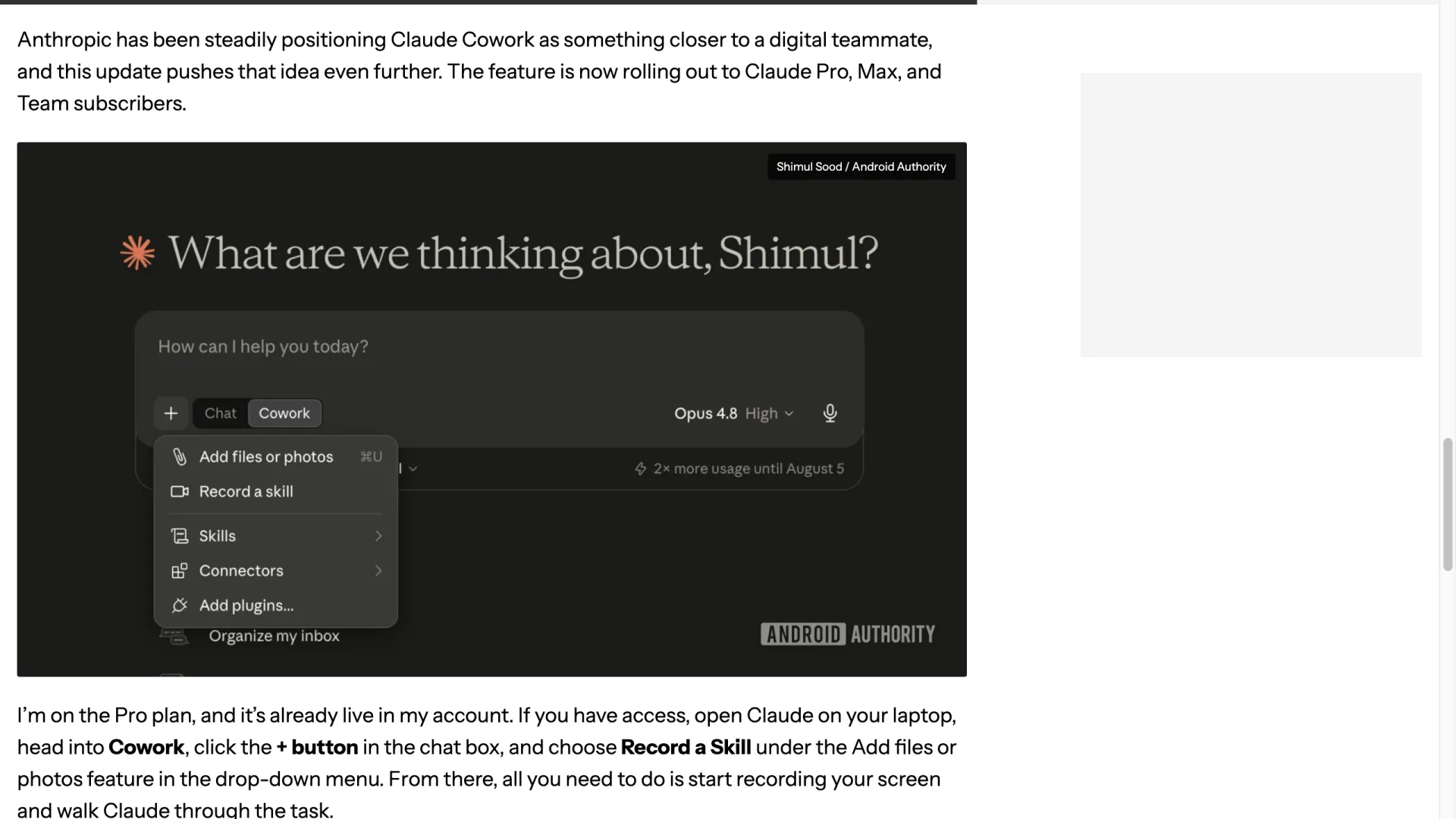
*Public screenshot of the Cowork + menu, captured from Android Authority's report. Image credit: Shimul Sood / Android Authority.*
Two things it does not do are worth stating plainly. It does not train a private Claude model on your work. The output is a procedure that starts from what you demonstrated, not a fine-tuned model. And it does not promise that one recording captures every future variation; the launch announcement describes a Skill Claude "can run again," not one that handles inputs it never saw. Treat the generated Skill the way you would treat a colleague's first draft of a runbook: useful immediately, but it still needs an owner and tests.
Record the rules, not the clicks
Your narration carries the part of the process the cursor cannot show. The single most useful adjustment, from tester Kavya's testing notes on X, is to explain the decision behind an action instead of the action itself. "Click Export" records a click. "Export as CSV, because our CRM importer rejects Excel files" records a rule that holds up when the data changes.
Say six things out loud before and during the recording:
1. Outcome: "Produce a weekly sales workbook with one cleaned tab per region." 2. Allowed inputs: "Use only the CSV files in this folder and the current template." 3. Decision rule: "Remove duplicate rows by invoice ID, then keep the newest timestamp." 4. Exception: "If an invoice ID is blank or totals disagree, do not fix it. Add it to the exceptions tab." 5. Check: "Regional totals must equal the source total, and every tab needs the standard column order." 6. Deliverable: "Save as weekly-sales-YYYY-MM-DD.xlsx in the reviewed folder."
Keep sample-specific details separate from reusable rules, and say the rule aloud whenever the sample could mislead. Your demonstration might open Acme-East.csv, but the rule is "use the approved regional CSV files." You might pick a blue chart, but the instruction is "use the current reporting template."
Narrate the exceptions too, because that is where recordings fall short. Okazaki, who maintains 252 SKILL.md files, estimates a recording captures only about half of a real skill, and the missing half (the exception handling) is the half that matters in production. His recommendation is to use the feature as a way to draft a procedure in ten minutes, then let a person define the activation conditions and exceptions. Record the common path; own the edges.
Turn the recording into a Skill you can trust
Before you reuse or share the generated Skill, read it. Screen recordings pick up real folder names, internal labels, and paths, so check for copied identifiers, credentials, and instructions that only make sense for the one sample you happened to use.
Then run three replay tests on inputs the recording never saw:
| Test | Input | A passing result |
|---|---|---|
| Normal | A fresh example that follows the recorded pattern | Claude produces the expected output without leaning on the original sample. |
| Imperfect | An input with a missing value, a duplicate, or a conflict | Claude applies the exception rule, or asks for the missing decision. |
| Out of scope | A protected action, or a task outside the recorded process | Claude stops or routes it to a reviewer instead of improvising. |
The normal replay tells you whether the Skill generalized. The imperfect replay tells you whether your exception language was specific enough. The out-of-scope replay tells you whether the Skill has a boundary at all.
For a team, attach three things the recording cannot hold: a named owner, the date it was last reviewed, and the data classification it may handle. A Skill that worked in July is not proof it still works after a template, permission, or process change.
Good first experiments, and what to keep off camera
Start where a mistake is cheap and easy to spot:
- Normalize a spreadsheet's columns, dates, and number formats.
- Turn a recurring set of source notes into a report with a fixed section order.
- Apply naming and folder rules to a batch of already-approved files.
- Run a pre-publish checklist that flags missing titles, links, or images for a person to fix.
- Reproduce a QA path and generate a structured bug report with screenshots and expected behavior.
Each has a known-correct result you can compare against a template, a checklist, or a total, which also lets you learn how much narration a task needs.
Keep the first recorded Skill away from anything irreversible or sensitive: passwords, payment approvals, account recovery, health information, legal decisions, and confidential customer records. Close unrelated windows, turn off notification previews, and use a sanitized sample. A screen recording exposes far more context than a written prompt, even when the task itself looks harmless.
Frequently asked questions
Can I use Record a Skill on the free plan?
No. At launch it is limited to the Pro, Max, and Team plans on the Claude desktop app. Users on the free plan have noted this gap. Check the current in-app menu for the final word on a specific account.
Does recording a workflow train a new Claude model?
No. The output is a reusable Skill (a procedure Claude follows), not a fine-tuned private model built from your recording. Review and test that procedure before relying on it with new inputs.
How long can a recording be, and where is it stored?
Anthropic's launch announcement does not state a recording-duration limit, file-size cap, or storage and retention policy. Until it does, avoid recording sensitive data rather than assuming a specific handling rule.
Why is the Record a skill option missing?
It appears in Cowork's + menu on the desktop app for Pro, Max, and Team accounts. If you do not see it, update the desktop app and confirm the account is on a supported plan; availability can differ by build and region.
What should I test before reusing a recorded Skill?
Run one normal input, one incomplete or conflicting input, and one out-of-scope request. Keep the Skill only after it handles the first two correctly and escalates the third instead of guessing.