 AIREITER
Anthropic's November 10, 2026 announcement expands Claude interactive connectors from compact widgets to 13 full web applications, including Adobe, Atlassian, Box, and Notion, across all plans. Setting a connector to "Always allow" permits eligible read calls, while the default Auto mode classifier still decides whether higher-risk write actions execute or pause for approval unless you lock per-tool permissions or vendor scopes.
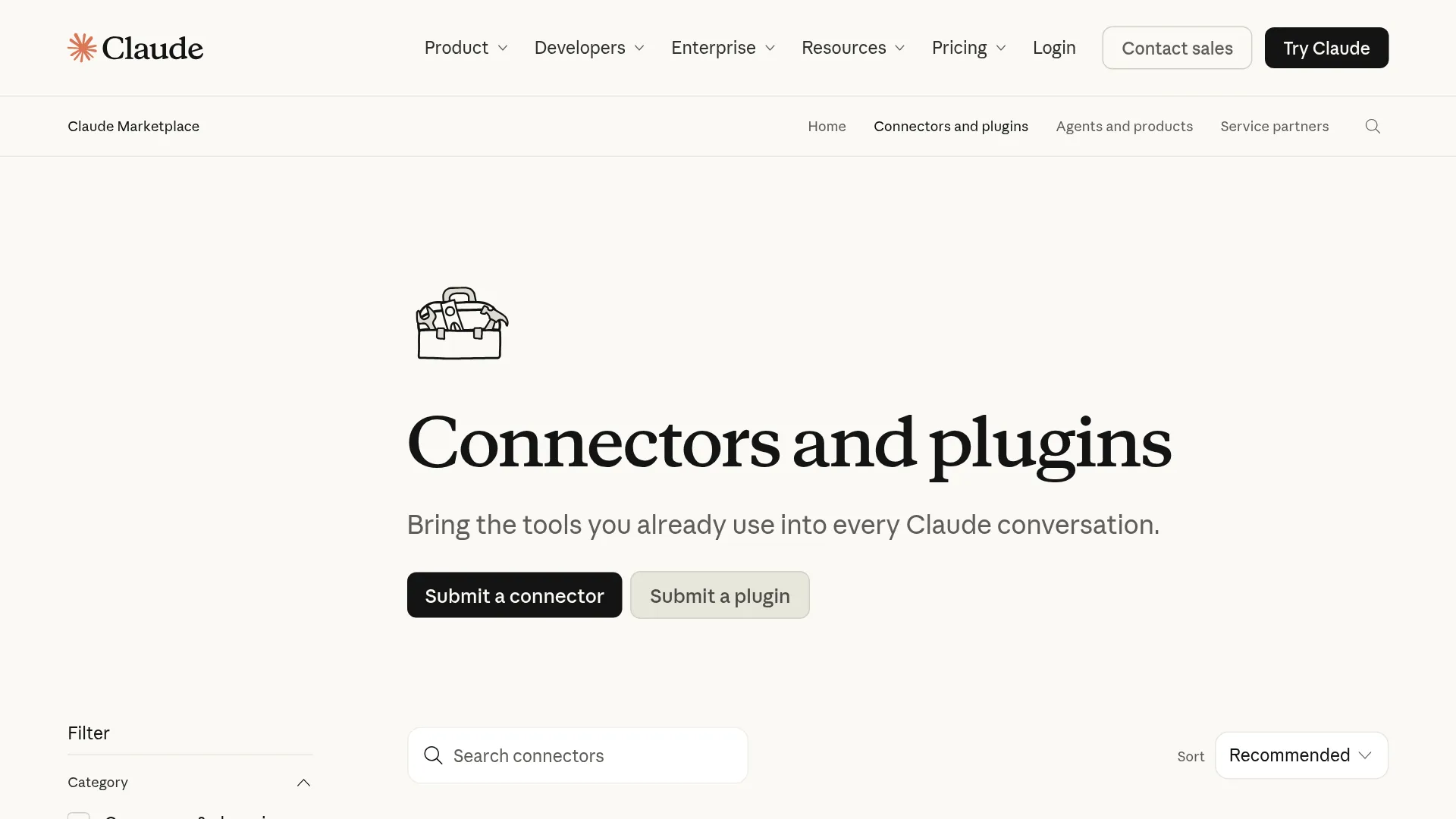
Out of the 1,108 connectors and 532 plugins listed in the Claude Marketplace, only verified integrations can render full embedded interfaces alongside a chat, and permissions enforce across connector, session, and administrator layers.
Inline Cards vs. Side-by-Side vs. Fullscreen Apps: What Opens Where
According to the Claude Interactive Connectors documentation, Claude renders external applications in three display modes (inline cards, side-by-side panels, and fullscreen views) inside sandboxed iframes across all 6 subscription plans (Free, Pro, Max, Ultra, Team, and Enterprise) with no connector fee. While inline cards work on iOS and Android, side-by-side panels and fullscreen editors only load on Claude Web and Claude Desktop once an account receives the unified chat-and-Cowork interface.
The November 10, 2026 full-tool release enables complete application embedding for 13 launch partners: Adobe, Asana, Atlassian Confluence, Box, Canva, Carta, Dropbox, HubSpot, monday.com, Notion, Smartsheet, Vercel, and Webflow. Three additional partners (Figma, Harvey, and Shopify) are still building full-view integrations, leaving Figma on inline FigJam diagramming and review cards (January 2026 MCP Apps release).
| Display Mode | Workspace Behavior | Supported Platforms (Help Center) | Navigation & Pinning Rules |
|---|---|---|---|
| Inline cards | Compact in-chat widgets for status checks, single confirmations, or quick message drafts | Web, Claude Desktop, Cowork, iOS, Android | Triggered automatically by conversation context; cannot be opened without a prompt |
| Side-by-side panel | Authenticated tool opens beside the chat; user and Claude edit the same open file or row live | Web and Claude Desktop (requires unified Chat + Cowork rollout) | Can be launched cold from the + menu, Artifacts page, or sidebar without typing a prompt |
| Fullscreen view | Expands the side panel to fill the viewport while keeping Claude's prompt bar pinned at the bottom | Web and Claude Desktop (not supported on iOS or Android) | Pinned shortcuts save locally per browser, so Web pins do not sync to Claude Desktop |
Per Anthropic's interactive connector security specification, each interactive view runs inside a sandboxed <iframe> governed by strict Content Security Policies (CSP) with no access to Claude's parent DOM, cookies, or local storage, communicating with the host model through auditable JSON-RPC messages. Connector servers must pre-declare external domains they contact, and Claude inspects the HTML payload before rendering. Interactive views reuse the original connector OAuth grant without requesting a second login, and Anthropic blocks all in-chat financial transactions and purchases across embedded views.
For IT administrators who want Claude to query corporate data without embedding third-party web editors inside the chat client, Team and Enterprise owners can decouple UI rendering from backend tool calls. Under Organization settings → Connectors, disabling the specific tool calls that render interactive views forces Claude back to standard text-only MCP execution while keeping the underlying connector active.
Approval Granularity: Connector Settings, Session Modes, and Role Overrides
Claude evaluates interactive connector permissions across three stacked layers documented across the Claude Cowork guide and Enterprise RBAC documentation: the connector's tool setting (Always allow, Needs approval, Blocked, or Enterprise Custom), the conversation's execution mode (Manual, Auto, or Skip), and organization role policies. Even when a user clicks inside an embedded app, any action Claude takes on the open page, row, or file must pass the intersection of these three gates.
Understanding how the connector-level setting interacts with the message-box execution mode is critical because the unified Claude interface defaults to Auto mode on Pro, Max, Ultra, and Team plans, while defaulting to Manual on Enterprise plans. For a deeper look at how the safety classifier scores background actions, read our Claude Auto Mode default behavior guide.
| Session Mode (Cowork Docs) | Connector Set to "Always allow" | Connector Set to "Needs approval" | Connector Set to "Blocked" |
|---|---|---|---|
| Manual (Enterprise default) | Approved automatically | Claude pauses and prompts user (Allow / Deny) | Denied (tool hidden from model) |
| Auto (Pro, Max, Ultra, Team default) | Read-only tools run; safety classifier decides whether write/delete tools run or prompt | Safety classifier evaluates prompt injection/exfiltration risk and decides whether to run or ask | Denied (tool hidden from model) |
| Skip (Opt-in only) | Approved with zero safety checks | Approved automatically without asking | Denied (tool hidden from model) |
On Enterprise plans, administrators configure a fourth connector state (Custom) under Organization settings → Permissions → Custom roles → Connectors (Enterprise RBAC setup guide). Selecting Custom exposes per-tool granularity: an Enterprise admin can set search_issues on Jira to Needs approval while setting create, update, or delete tools in the same connector to Blocked (whereas Team plan owners configure tool-level Always allow, Needs approval, or Blocked states organization-wide without custom role groups). Keep four documented enforcement rules in mind:
- Additive role conflicts favor permission: Per the Enterprise role-based permissions guide, if a user belongs to multiple groups with different custom roles, connector permissions combine additively and the most permissive grant wins, bounded by the organization-wide connector policy ceiling. Role updates take up to 15 minutes to propagate.
- Legacy vs. new custom role defaults: When an Enterprise admin enables connector permissions on an existing custom role, Claude seeds it with
All connectors: Always allowto preserve access, whereas newly created custom roles default toNeeds approvalacross all connectors. - Cowork write-tool lock: In Cowork and unified sessions, the organization toggle Allow "Always allow" for connector tools is switched off by default for write-capable tools (Enterprise RBAC docs and Cowork docs). Even if an employee selects "Always allow" in chat, write operations require manual confirmation unless an Owner enables that org-wide setting.
- Research mode bypasses secondary prompts: According to the custom remote MCP guide, when a user runs Claude Research, Claude investigates across hundreds of sources and automatically invokes authorized connector tools without asking a second time. Disable write-capable tools in the conversation's Search and tools menu before running Research with custom connectors.
Community feedback on Reddit shows that permission persistence also depends on how an MCP server is packaged. In r/ClaudeCowork, users reported that clicking "Always allow" failed to stick across sessions when a connector was bundled inside a plugin with subagents:
"It could be because your connector is packaged as part of a plugin and is not installed as a connector." (u/Throwaway_alt_burner on r/ClaudeCowork)
Preview Limits and Scope Boundaries for Adobe, Atlassian, Box, and Notion
As documented in Anthropic's connector extension guide and custom remote MCP guide, connected interactive apps inherit the exact permissions of the signed-in user's account via OAuth (or the global scope of a shared API key), and Claude can only execute actions that the third-party vendor exposes as MCP app tools. Because each partner built different guardrails into the November 10, 2026 release, approval granularity and preview limits differ across Adobe, Atlassian, Box, and Notion.
| Partner Connector | Exposed Tool Count & Core Actions | Authentication & Scope Inheritance | Key Preview Limits & Admin Controls |
|---|---|---|---|
| Adobe | 50+ tools across Photoshop, Illustrator, Firefly, Express, Premiere, Lightroom, InDesign, and Adobe Stock; photo retouching and PDF redaction/highlighting (Anthropic release) | Base access works with a Claude account; signing into an Adobe account inside the frame unlocks saved work across sessions and higher usage limits (Adobe announcement) | No Creative Cloud paid subscription required to connect, but unauthenticated edits are temporary and existing Adobe account tier limits apply |
| Atlassian | Live page drafting and editing in full Confluence editor; issue search, creation, and updates in Jira, Bitbucket, and Loom (Marketplace) | OAuth inherits user's exact Confluence space and Jira project permissions | Org admins govern Read, Write, and Search intents globally or per app in Atlassian Administration; changes enforce immediately |
| Box | Inline document preview, floor plan and file revision, and side-by-side version comparison (Anthropic release) | OAuth tied to user's Box folder permissions | Edits stage in a side-by-side comparison view inside Claude so users review revisions before deciding whether to keep changes (Anthropic release) |
| Notion | Full authenticated Notion page and database creation, incremental row building, and live manual + AI co-editing (Anthropic release) | Workspace-wide OAuth token inherits all pages and databases the authenticated user can view or edit (Connector docs) | No native per-page read/write filter in Claude; requires a separate Notion guest account or isolated workspace to restrict scope (r/Notion workaround) |
Atlassian (Confluence and Jira): Admin Read, Write, and Search Intents
Opening Confluence through the Atlassian MCP connector on Web or Desktop loads the complete, authenticated Confluence editor rather than a simplified preview (November 10 release). Because OAuth inherits all Jira projects and Confluence spaces the user can access, Atlassian provides a server-side governance layer documented in Configure Atlassian MCP Server Permissions under Atlassian Administration → Connectors → Atlassian MCP server → Permissions. Organization admins can toggle three distinct permission intents (Read, Write, and Search) into Allowed, Blocked, or Partially allowed states.
Using the Edit details dialog in Atlassian Administration, an admin can permit Write actions in Jira while blocking Write in Confluence (or vice versa), and can toggle Apply to future additions so newly released Atlassian MCP tools automatically inherit the policy. Changes enforced in Atlassian Administration take effect immediately without requiring users to restart Claude, returning "Access denied: Your organization admin has not authorized the write permission" whenever a blocked tool is called.
Be aware of rate limits during bulk ticket operations: users in r/atlassian reported hitting HTTP 429 errors when agents rapidly created Jira tickets through the Atlassian MCP server, prompting some teams to place a local Node.js throttle proxy in front of automated workflows.
Notion: Workspace-Wide OAuth Scope and the Guest Account Workaround
Notion's interactive connector embeds the full Notion document and database editor beside your chat (November 10 release), allowing you to alternate between manual block editing and asking Claude to populate database rows. However, because Claude connectors inherit the connected account's access, Notion's MCP OAuth token grants access to all pages and databases your Notion user account can reach, with no built-in Claude toggle to restrict the connector to a single folder or sub-page.
Furthermore, a thread on r/ClaudeAI (~2,289 points) highlighted the risk of uninspected third-party MCP instructions after users reported Notion's MCP connector injecting mid-task promotional prompts. Users in r/Notion asking how to scope Claude to specific pages found that prompt instructions cannot replace hard credential isolation:
"the mcp token inherits your permissions... connecting it through a guest account that only sees the pages you want..." (u/redpiapps on r/Notion)
Until resource-level OAuth scoping is added, the strongest current isolation workaround is to create a dedicated Notion guest account, share only the target pages or databases with that guest identity, and authenticate the Claude connector using the guest login.
Directory vs. Custom MCP Apps: Setup Paths and Public Preview Limits
Whether you are installing an existing connector or deploying a custom server with the MCP Apps SDK (which entered public preview on November 10, 2026), Claude enforces different installation paths and UI capabilities across Verified directory connectors, Community directory listings, and custom remote MCP URLs.
| Connector Type | Setup Path in Claude | Authentication & Plan Rules (Custom MCP Docs) | UI & MCP Apps Capabilities (MCP Apps Docs) |
|---|---|---|---|
| Verified directory connector (e.g., Adobe, Atlassian, Box, Notion) | Chat + menu → Connectors → Manage connectors (or Customize → Connectors) → select Interactive badge → Connect | Standard OAuth sign-in on all plans; Enterprise supports IdP-managed or Claude-issued auth | Full support for inline cards, side-by-side panels, fullscreen views, Entry points (sidebar pinning), and Embedded websites (frame_domains) |
| Community directory connector | Browse Customize → Connectors (Marketplace directory) → Install | OAuth or vendor-defined credentials across all plans | Supports text tools and basic in-chat views, but blocks Entry points and Embedded websites |
| Custom remote MCP server | Individual: Customize → Connectors → + Add → Add custom connector; Team/Enterprise Owner: Organization settings → Connectors → Add → Custom → Web | Free plan allows 1 custom connector; paid plans allow multiple; supports OAuth, fixed request headers, or no sign-in | Can test App tools, Entry points, and Embedded websites during personal/org custom testing if hosted on a remote HTTPS server |
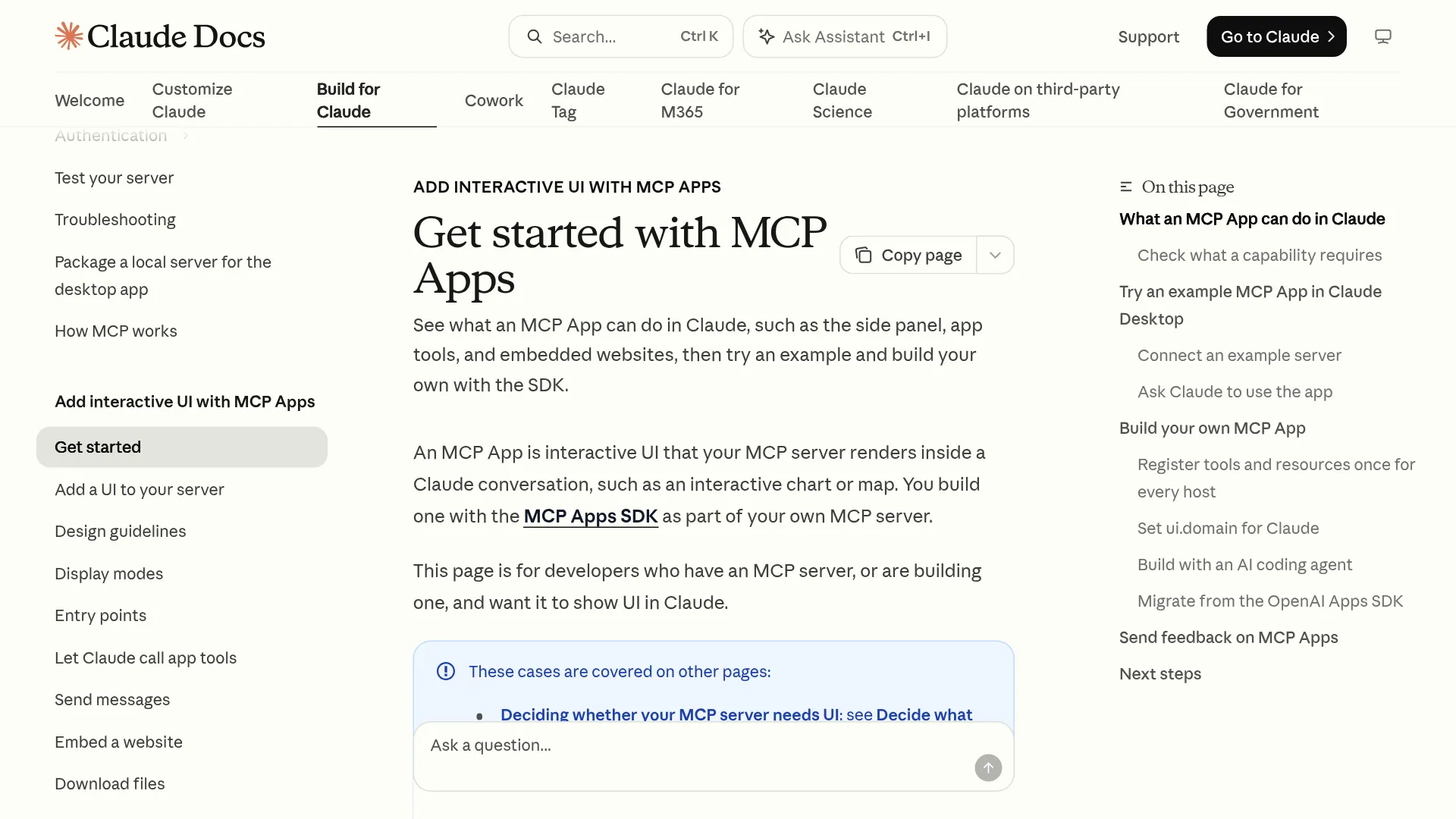
If you are building or deploying an MCP App using registerAppTool(), registerAppResource(), and App.connect(), the Get Started with MCP Apps documentation and Manage Claude's Tool Access guide specify four technical constraints:
- Community directory listings block embedded sites and entry points: While any MCP server can render basic in-chat views, Embedded websites (
<iframe>site loading) and Entry points (opening from the Artifacts page or pinning to the sidebar) require a Verified directory listing (MCP Apps capability table). Even if your embedded site works when added as a personal custom connector, users installing it from a Community marketplace listing will have both features disabled. - Local
npx --stdioservers cannot test full-app features: You can run sample servers like@modelcontextprotocol/[email protected]locally viaclaude_desktop_config.json, but App tools, Entry points, and Embedded websites require a remote MCP server reachable over HTTPS from Anthropic's cloud IP ranges (MCP Apps docs and Remote MCP network rules). Migrating existing OpenAI Apps SDK projects that declareopenai/uientry points also requires Claude-specific entry-point configuration. - Mandatory 32-character SHA-256
ui.domainhash: Per theui.domainspecification, your server'sResource._meta.ui.domainfield must equal the first 32 hexadecimal characters of the SHA-256 hash of your MCP server URL, followed by.claudemcpcontent.com(for example,https://example.com/mcphashes toc3d80a4ed901ee05b21755a88273b4a4.claudemcpcontent.com). Any mismatch triggers anInvalid ui.domain formatorui.domain mismatcherror. - Context bloat at 10+ connectors or 30+ tools: Active connectors consume conversation context space. Once you connect 10 or more connectors (or 30+ individual tools), Anthropic's Manage Claude's tool access guide recommends opening the chat
+menu → Connectors → Tool access and switching fromAutoorAlways availableto On demand.On demandadds 1 extra search interaction before invoking a connector, preserving context capacity for long documents and code.
Frequently Asked Questions
Where are files saved when Claude edits inside Adobe, Box, or Notion?
In authenticated Notion and Confluence sessions, approved changes write directly to your cloud workspace. In Box (and Webflow, which stages edits on isolated page branches), revisions stage for side-by-side inspection before you commit them, while unauthenticated Adobe sessions remain temporary unless you sign into an Adobe account.
How does shared API key authentication affect connector permissions on Team and Enterprise plans?
According to the custom remote MCP guide, standard OAuth connectors restrict Claude to each individual member's external permissions, whereas configuring a fixed request-header credential (such as a shared API key or bearer token) grants every organization member using that connector the full access of that shared credential. Always scope shared keys to least-privilege read/write roles before adding them in Organization settings → Connectors.
What happens if a custom connector URL or OAuth scope needs to be updated?
Per the custom remote MCP documentation, existing custom connector configurations cannot be edited in place. You must remove the connector under Customize → Connectors (or Organization settings → Connectors for Team and Enterprise owners) and re-add it with the updated URL, headers, or OAuth settings.
Permission Hardening Matrix Before You Connect Production Apps
Before enabling interactive connectors across your workspace, apply the exact configuration path that matches your role and plan tier:
| Deployment Scenario | Where to Configure | Exact Permission & Tool Access Settings to Apply |
|---|---|---|
| Individual user connecting Notion or Box (Free, Pro, Max, Ultra) | Chat + menu → Connectors & third-party account settings | Switch session mode from Auto to Manual (Cowork docs) when editing production files; authenticate Notion via a restricted guest account (r/Notion). |
| Power user with 10+ connectors or 30+ tools (All plans) | Chat + menu → Connectors → Tool access | Switch conversation tool loading from Always available or Auto to On demand (Tool access docs) to stop unused MCP schemas from consuming context capacity (adds 1 lookup interaction). |
| Team Owner or Enterprise Admin locking down write tools | Team: Organization settings → Connectors; Enterprise: Organization settings → Permissions → Custom roles → Connectors | On Team, set write tools to Needs approval or Blocked; on Enterprise (RBAC docs), set the connector to Custom for per-tool blocks and keep Cowork's Allow "Always allow" for connector tools disabled. |
| Atlassian Organization Admin (Jira & Confluence) | Atlassian Administration → Connectors → Atlassian MCP server → Permissions | Set Read and Search to Allowed, click Edit details on Write (Atlassian docs) to block Confluence page overwrites while allowing Jira ticket creation, and disable Apply to future additions. |
| Developer testing a custom MCP App (Public Preview) | Remote HTTPS server + Customize → Connectors → Add custom connector | Host the server on a public HTTPS endpoint (MCP Apps docs; local npx --stdio cannot test app tools or embedded sites), and set Resource._meta.ui.domain to <first-32-hex-of-sha256(url)>.claudemcpcontent.com. |