 AIREITER
A video face swap is a moving-image problem, not a photo-editing problem. A result can look fine in its first frame and lose the identity at a profile turn, break around a hand, or show mismatched skin tone after a social platform recompresses it. Start by matching a tool to an authorized project, then test the hardest shot before committing the full edit.
Here is the practical recommendation. Use a hosted tool with a free test path when you need a quick, consented social clip. Start with a service that explicitly publishes multi-face support when a group scene is the requirement. Choose an API-based option when an application or repeatable client workflow needs automation. Choose local processing when keeping footage on the workstation matters more than setup time. No vendor's quality claim replaces a render on your own approved footage.
Choose a Tool by the Job
The table is a shortlist, not a performance ranking. It separates facts published by each provider from details you must confirm in the account before loading a production file.
| Project need | Start with | Officially published reason | Confirm before uploading |
|---|---|---|---|
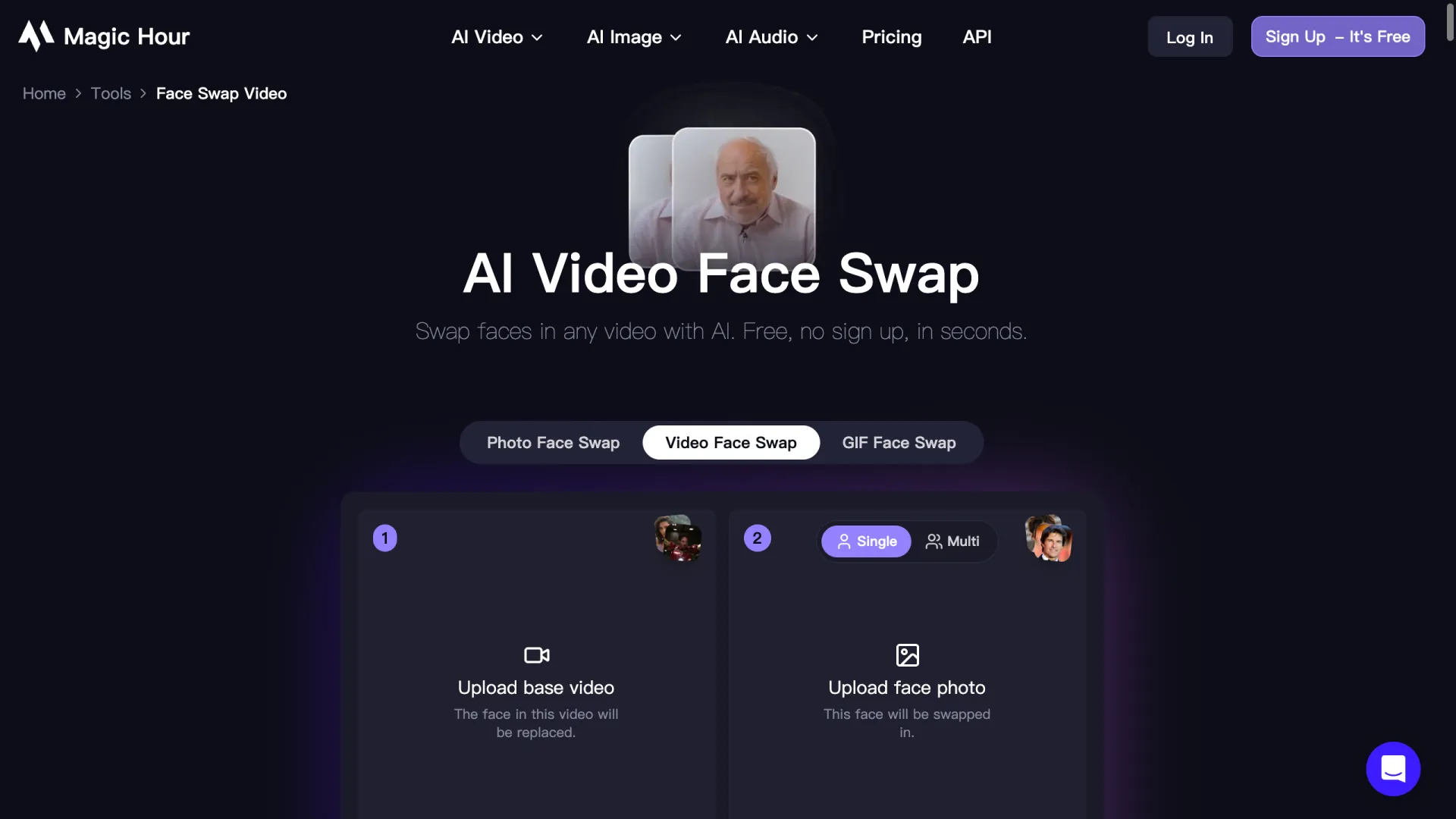
| Test a short hosted workflow before paying | Magic Hour | The product and pricing pages advertise a free starting option; paid plans advertise watermark-free exports and commercial use | Current free-credit amount, video duration, watermark, resolution, queue, and output terms |
| Map several people in a group clip | DeepSwap | Its product page says it supports up to six faces in one video | Whether the current plan permits the required source length, output tier, and credits |
| Build an automated workflow | Magic Hour Face Swap API | The official API page documents photo, video, and GIF face swap, multi-face mapping, segment start/end timestamps, SDKs, and webhooks | Live credit rate, concurrency, input limits, and commercial/API terms |
| Keep authorized footage on the workstation | FaceFusion | FaceFusion says it processes photo and video locally; its official GitHub project documents run, batch-run, and headless-run commands | Hardware, installation time, model licenses, security of the local machine, and operator skill |
| Compare another simple hosted upload flow | Facy or VisionStory | Both public pages describe video upload, reference-face input, face tracking, and multi-face workflows | Current plan limits, watermark, resolution, commercial rights, and retention policy |
For a 15-second consented social test, begin with a hosted free path and judge the downloaded file. For an ensemble clip, verify a multi-face workflow first instead of assuming a single-face tool will map everyone correctly. For a developer product, test the API's segment controls and webhook behavior on a non-sensitive sample. For unreleased or sensitive footage, FaceFusion provides a local route, but its own repository warns that installation requires technical skill and is not recommended for beginners.
The words "best," "free," and "4K" do not answer the decision by themselves. The useful question is: can this specific account produce an approved version of this shot with the rights, output, and data controls the project requires?
Confirm the Live Plan Before You Commit
Provider plans change. A public landing page can describe a capability while an account plan sets a shorter duration, a watermark, a queue, lower resolution, or different commercial rights. Check these items in the live plan or official pricing and terms pages before a paid production run:
- Maximum video duration, file size, and supported input format
- Output resolution, frame rate, watermark, and download format
- Credit cost or included usage for the selected quality tier
- Maximum face count and whether each face can use a separate reference
- Commercial-use and client-delivery rights for the chosen plan
- API access, rate limits, webhooks, and concurrency when automation matters
- File retention, deletion controls, model-training statements, and data location
- Synthetic-media, advertising, or platform disclosure requirements for the release channel
Magic Hour's public face-swap product page states that paid users can create 4K output and use results commercially, while its API page describes no-watermark paid plans, video processing, multi-face mapping, and segment start/end timestamps. Its pricing and FAQ pages are the places to re-check the active plan, rather than relying on a copied dollar figure from a comparison article.
DeepSwap's public product page states support for up to six faces and advertises 4K output. Its privacy policy, which displays an update date of November 11, 2021, says created content is stored for seven days and uploaded input media is stored during use. Treat that as a reason to review the policy directly before using client or sensitive assets, not as a promise that cannot change. The same policy links account areas for deleting uploads, creations, and saved faces.
Facy's public page says uploaded files are automatically deleted after 48 hours. VisionStory's public tool page says files are auto-deleted after processing. Those descriptions are useful screening signals, but their exact scope and plan applicability must be confirmed against the current policy. If a provider does not publish the value you need, record it as unknown and ask support before upload.
Cloud or Local: Make the Privacy Decision Early
Face references and target clips can include a person's likeness, client work, personal information, or unreleased creative material. Do not treat an upload decision as a routine production step.
Hosted tools reduce setup work. They can be a reasonable option for authorized social clips, approved campaign assets, and tests with data a client has agreed to process in the cloud. The tradeoff is that the provider handles the files under its service terms. Retention, regional processing, account deletion, and model-training policies should be reviewed as part of the vendor approval process.
Local processing shifts the responsibility instead of removing it. FaceFusion says it runs photo and video manipulation on the user's machine, and its project repository shows batch and headless execution options. That can reduce third-party upload exposure, but the editor must secure the workstation, restrict shared folders, manage model downloads, and prevent unauthorized copies. It also requires time and technical competence to install, update, and troubleshoot.
Use this simple threshold: if a client cannot authorize cloud processing under the published terms, do not upload a test file to a hosted service. Evaluate an approved local workflow or obtain written approval for a different provider.
Use Permission as a Production Requirement
A tool can process a face without establishing the right to use it. Before making a video face swap, confirm permission for both the target footage and the replacement likeness. The agreement should cover the intended context, distribution channels, campaign duration, geography, and whether the result will be altered or reused.
A practical preflight looks like this:
- The team owns the footage or has authorization to edit it.
- The person whose face is used has explicitly agreed to this AI-modified use.
- The rights holder approves the project audience, distribution, duration, and any commercial use.
- The output will not create a false endorsement, identity, statement, or event.
- The project has an approved storage and deletion plan for input and output files.
- The publishing team checks platform policies and any required synthetic-media disclosure.
Do not use video face swap tools to impersonate someone, harass them, mislead an audience about a real event or endorsement, or create intimate content without explicit consent. Public availability of a person's image is not permission to modify their likeness.
For advertising and client work, keep the release and approval record with the project. A generic talent release may not cover AI modification, a new context, or reuse after the original campaign ends.
How to Test a Video Face Swap Result
The useful quality test is repeatable: make a small authorized render, inspect it in the final delivery format, and decide whether the shot passes. This is more reliable than choosing a service because a demo still looks convincing.
Test the Hardest Motion First
Use a 10-to-20-second sample that includes the shot's difficult conditions: head turns, speech, changing exposure, fast motion, a cut, or a hand near the face. A front-facing still moment is the easiest condition and should not be the only test.
Watch for temporal identity drift. The face may change shape, lose resemblance, slide relative to the head, or vary across frames when the subject turns. If the project has multiple camera angles, include every important angle in the test set before committing the longer edit.
Inspect the Mask Boundaries
Pause at the hairline, jaw, ears, glasses, hands, masks, microphones, and mouth. These areas expose unstable masking and blending. In talking footage, inspect wide vowels and consonants. In action footage, inspect frames where hands or props cross the face.
Reject a shot when an edge artifact is visible at normal speed on the intended viewing device. A clean center of the face does not compensate for a visible jawline or mouth failure.
Check Light, Color, and the Final Export
Compare skin tone, shadow direction, white balance, grain, sharpness, and compression against the surrounding frame. A technically tracked face can still look pasted in when the reference image was lit from another direction or has a different camera treatment.
Download the final file and check duration, resolution, frame rate, audio sync, and bitrate. Then run a private upload through the destination platform if social publishing is planned. Recompression can soften edge detail, create banding, or reveal flicker that was absent in the browser preview.
Keep source footage, reference images, render settings, and the approved master in a restricted project folder. That gives the team a reproducible record if an authorized revision is needed.
Process Longer Edits as Controlled Segments
A long file combines more lighting shifts, camera changes, and opportunities for identity drift. Process it as named shot-sized segments rather than a single opaque render.
- Confirm rights, consent, privacy approval, and the current plan limits.
- Render an authorized test segment from the most difficult shot.
- Approve or reject it using motion, boundary, light, and export checks.
- Lock the successful reference and source settings, then process short named segments.
- Review joins for identity, color, timing, and audio continuity.
- Export the master, test the delivery platform, and remove working uploads according to the approved retention plan.
This approach creates clearer approval points and limits the cost of a failed render. It also makes it easier to change one approved shot without reprocessing the entire edit.
FAQ
Which video face swap tool should I try first?
For a quick authorized hosted test, start with a provider that publishes a free starting path, then check the live duration, watermark, and commercial-use restrictions in the account. For a group clip, test a tool that explicitly states multi-face support. For sensitive footage, assess a local option such as FaceFusion before uploading anywhere.
Which option supports multiple faces in one video?
DeepSwap's product page states support for up to six faces in a clip. Facy, Magic Hour, and VisionStory also describe multi-face workflows. Confirm the face limit and mapping behavior for the current plan using your own authorized sample.
Can I process a face swap video locally?
Yes. FaceFusion presents itself as a local photo and video processing tool, and its official repository documents interactive, batch, and headless runs. It requires more technical setup and local security discipline than a hosted upload tool.
Can I use a video face swap commercially?
Only if you have rights to the footage and likeness and the active provider plan allows the intended commercial use. Confirm the terms for the specific account, preserve approvals, and follow the distribution platform's current policies.
How do I make a video face swap look more realistic?
Use a high-quality, authorized reference whose angle and lighting resemble the target. Test motion, occlusion, expression, light, and the downloaded export. A tool should be judged on the difficult frames, not just the first preview image.