 AIREITER
Seedream 5.0 Pro shows up in ComfyUI as a cloud node called ByteDanceSeedreamNodeV2, added through Partner Nodes. There are no weights to download and nothing runs on your GPU during generation: the prompt goes to ByteDance's servers and an image comes back. So the real skill isn't "installing Seedream 5.0 Pro in ComfyUI." It's the handoff: taking that returned image and routing it into your local nodes for upscaling, region edits, and detailing. If you already run a ComfyUI graph, this is the piece that matters.
A cloud node, not a local model
The most common question is whether you can run Seedream locally. You can't. Seedream 5.0 Pro is API-only. The ComfyUI node is a thin client that sends your prompt and reference images to ByteDance and returns the result. Three practical consequences:
- No VRAM cost. A 3090 and a laptop iGPU produce the same output at the same speed, because the model isn't on your machine. The generation step is bottlenecked by the API, not your card.
- You need internet and credits. Each generation is metered. There's no offline mode and no "free after download" like a local checkpoint.
- No LoRAs, no fine-tuning, no custom samplers on the generation itself. You get the parameters the API exposes and nothing lower-level.
Seedream 5.0 Pro requires ComfyUI 0.27.1 or newer (the Lite variant landed earlier, at 0.15.0). If the node doesn't appear after you search the template library, update ComfyUI first.
Adding the Seedream 5.0 Pro node
To get it running:
- Update ComfyUI to a build that includes the node (0.27.1+ for Pro).
- Open the template library and search "Seedream 5.0 Pro," or add
ByteDanceSeedreamNodeV2manually from Partner Nodes. Two official templates ship: "Seedream 5.0 Pro: Text to Image" and "Seedream 5.0 Pro: Image Edit," both importable as JSON. - Connect your ComfyUI account so the node can spend API credits (Partner Nodes require a logged-in session and a permitted network environment).
- Run one text-to-image test and confirm the node's IMAGE output lands in SaveImage.
The node's core inputs:
- Prompt (text).
- Image size: width and height supported by the API. Aspect ratios run from square up to ultrawide.
- Seed, for reproducibility (with a caveat covered below).
- Reference image(s), optional: used as editing targets, style references, or subjects to keep consistent. The Lite node accepts up to 14 reference images; Pro takes multi-image input the same way.
- Some builds also expose guidance (CFG) and steps, depending on node version.
What Seedream 5.0 Pro does well, and why people add it to a graph rather than a general model:
- In-image text across 14 languages (English, Japanese, Korean, Arabic, Russian, Thai, and more): legible small text, which is where most image models fall apart.
- Character and product consistency across edits: it holds identity, lighting, and color when you change scenes or styles.
- Precision region editing: target a specific area while preserving surrounding lighting, depth, and texture.
- Infographics, flowcharts, and structured layouts: mixed text-and-image compositions, not only photos.
One model covers text-to-image, editing, and multi-image inputs, so you don't swap nodes for each task.
The handoff: routing the output into local nodes
ByteDanceSeedreamNodeV2 returns a standard IMAGE tensor, the exact type every other ComfyUI node expects. That means the cloud output is a first-class citizen in your graph: wire it into anything you'd wire a local generation into.
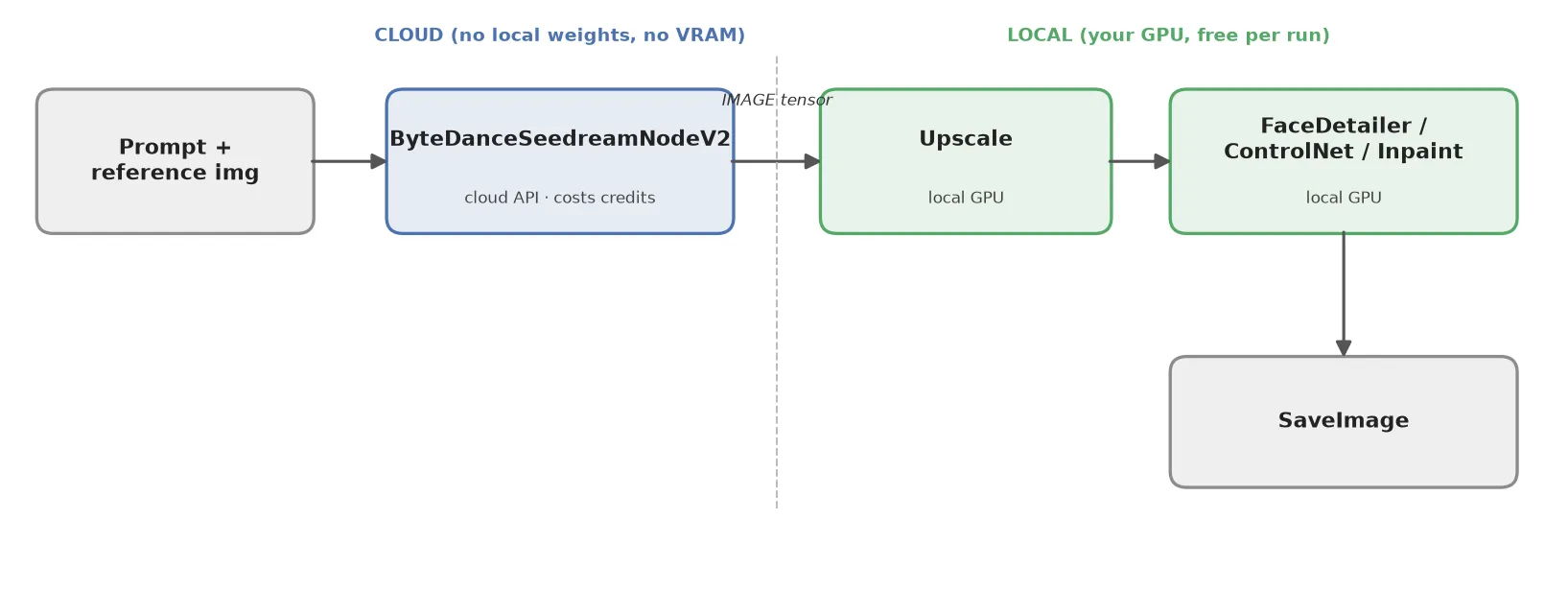
A typical hybrid chain:
- Generate with
ByteDanceSeedreamNodeV2(cloud, costs credits). - Upscale locally: feed the IMAGE into an upscale model node or a latent upscale plus local KSampler pass. This runs on your GPU, free per run, and lets you push past the API's native resolution.
- Detail and fix: send it through FaceDetailer, an inpaint pass, or a ControlNet-guided refinement using a local checkpoint. This is where you clean up hands, sharpen faces, or lock composition with a depth or pose map.
- Save with SaveImage.
As node strings, the two directions look like this:
- Cloud to local:
ByteDanceSeedreamNodeV2 → ImageUpscaleWithModel → FaceDetailer → SaveImage - Local to cloud:
LoadImage → ByteDanceSeedreamNodeV2 (reference input) → SaveImage
The logic: pay credits once for Seedream's strength (composition, text, subject consistency), then do the pixel-level polishing locally, where iteration is free. You get Seedream's look without paying the API for each upscale and touch-up attempt.
The reverse handoff matters too. You can feed a local image into the Seedream node as a reference or edit source. Load a photo, or take the output of a local generation, wire it into the node's reference input, and use Seedream 5.0 Pro's editing to add text, swap a background, or restyle a product shot while keeping the subject intact. So the graph flows both ways: local to cloud for editing, cloud to local for refinement.
When the handoff is worth it
Seedream 5.0 Pro is metered per image, so the question is what you're paying for. Across public side-by-side tests posted on X in July 2026 (users running identical prompts through Seedream 5.0 Pro, Nano Banana Pro, and GPT Image 2), a consistent picture emerges:
| Task | Seedream 5.0 Pro | Where it trails |
|---|---|---|
| In-image text, 14 languages | Strong, legible and multilingual | — |
| Mood, lighting, atmosphere, backgrounds | Strong | — |
| Subject/product consistency across edits | Strong | — |
| Hard photorealism | Good, not class-leading | Testers gave Nano Banana Pro and GPT Image 2 the edge on realism |
| Cost per image | Competitive; one tester found it matched Nano Banana 2's output for less | — |
Reach for Seedream when the shot needs readable text, a specific atmosphere, or a subject held consistent across variations. If you need maximum photographic realism, generate with a model that's stronger there and use Seedream only for the editing pass, which is exactly what the reverse handoff is for.
Concretely, credit burn scales with how many cloud calls you make, not how much you edit. A session of one Seedream generation followed by five local upscale-and-detail iterations costs one image's worth of credits, because only the first step touches the API. Check the current per-image price in the node itself or your Comfy account before a big batch, since it varies by resolution and by Pro vs Lite.
Against a pure-local workflow (say Flux on your own GPU), the trade is simple: local generation is free per image but costs you setup, VRAM, and prompt-wrangling for text and consistency; Seedream costs credits but gets text and consistency right on the first try. The hybrid graph lets you spend credits only on the generation and keep the expensive-to-iterate steps local.
Inside ComfyUI, the Partner Node is the simplest path, billed through your Comfy account. If you want to call the same ByteDance image API outside ComfyUI, for batch jobs or a backend, third-party gateways expose it too; AIReiter, for one, lists the ByteDance models on a credit basis (500 credits = $5) so you can hit the API from a script rather than a node.
Tips & gotchas
- Seeds aren't bit-exact. The node exposes a seed, but because sampling happens server-side you won't get the frame-perfect reproducibility of a local KSampler. Treat the seed as "close," not identical, across runs and node versions.
- Match aspect ratio to the destination. Generate at the ratio you'll upscale to; re-cropping after a cloud generation wastes credits.
- Don't send cloud output through another cloud pass if you can help it. Every API hop is credits. Once the image is back, keep the refinement local.
- Know when to stay local. If your shot is pure photorealism with no text and no consistency requirement, a local model may match it for free. Seedream earns its credits on text, editing, and holding a subject together.
Frequently asked questions
Can you run Seedream 5.0 Pro locally?
No. There are no downloadable weights. The ComfyUI node is an API client that sends your request to ByteDance's servers, so generation always happens in the cloud and requires internet plus credits.
Is Seedream 5.0 Pro free in ComfyUI?
No. Each generation consumes API credits, metered per image. The node itself is free to install; the calls are not.
Where's the Seedream 5.0 Pro download or GitHub repo?
There isn't one for the model; it's API-only. What you install is the Partner Node and the official workflow templates (text-to-image and image edit), available from ComfyUI's template library or as JSON.
What's the difference between Seedream 5.0 Pro and Lite in ComfyUI?
Both are cloud nodes with identical handoff behavior; they differ on quality tier, cost, and minimum ComfyUI build.
| Seedream 5.0 Pro | Seedream 5.0 Lite | |
|---|---|---|
| Min ComfyUI | 0.27.1+ | 0.15.0+ |
| Reference images | Multi-image input | Up to 14 |
| Output resolution | Production-grade | 2K / 3K documented |
| Cost | Higher per image | Cheaper |
| Best for | Editing, consistency, final quality | Drafts, cheaper iterations |
For most editing and consistency work, Pro is the one people cite.
Seedream 5.0 Pro or Nano Banana Pro for ComfyUI?
For readable in-image text, multilingual layouts, and subject consistency, Seedream 5.0 Pro is the stronger pick. For maximum photorealism, Nano Banana Pro and GPT Image 2 tend to edge it out. Many workflows use both: generate with whichever nails the base shot, then hand off to Seedream for the text or edit pass.