 AIREITER
Need to turn a recording into usable text, or stream captions from a microphone? Gemini 3.5 Transcribe is worth considering for its cleanup, vocabulary hints, and multilingual handling, but its two API paths have very different limits. The file API suits durable transcripts; the Live API suits short, low-latency sessions.
The practical answer: choose the file API unless you need live captions
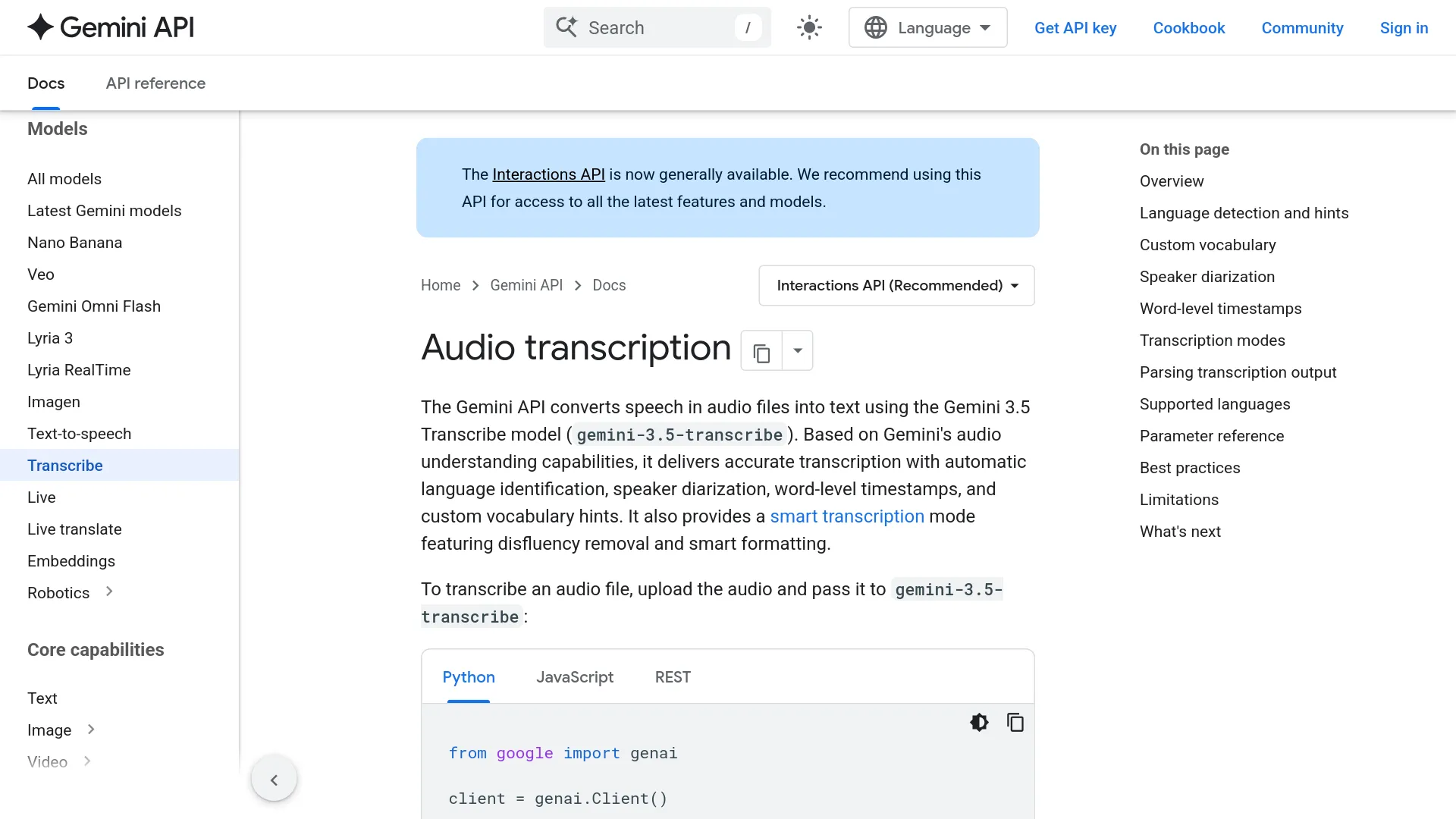
Gemini 3.5 Transcribe is Google's dedicated speech-to-text model family, available in public preview as of August 26, 2026. Google documents separate model IDs, transports, output events, and constraints for recorded and real-time audio.
| Need | Model ID | API path | Important constraint |
|---|---|---|---|
| Meetings, calls, uploaded recordings | gemini-3.5-transcribe | Interactions API | Up to 1 hour for a standard unary request; 30 minutes with diarization or word timestamps |
| Live captions, microphone input, voice UI | gemini-3.5-transcribe-live | Live API | 10-minute continuous session; no live diarization or word-level timestamps |
For a meeting archive, call analysis, or subtitle preparation, start with gemini-3.5-transcribe. For a caption preview or push-to-talk interface, use gemini-3.5-transcribe-live. Google's recorded-audio transcription guide and Live API guide document the workflows separately.
Availability is still preview-only
Google announced Gemini 3.5 Transcribe on August 26, 2026, and lists the developer API in public preview through Google AI Studio and Google Antigravity. Enterprise access is also listed in preview through Gemini Enterprise Agent Platform. Preview status means regional coverage, quotas, and stability may differ from a generally available speech service, so test representative audio before moving important volume.
Gemini 3.5 Transcribe pricing in practical units
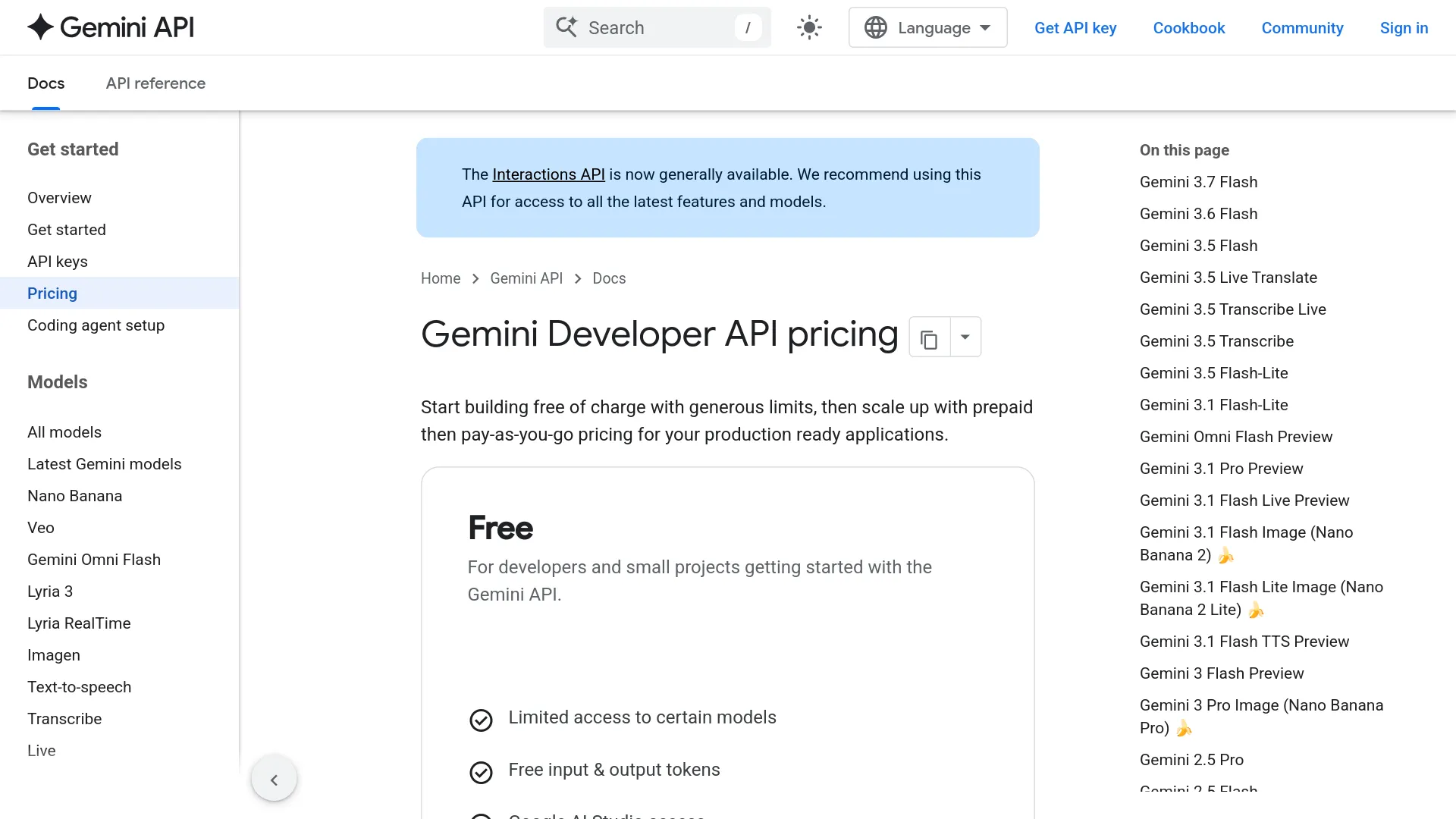
Google's Gemini API pricing page lists token-based rates rather than a flat transcription fee. The current pricing snapshot shows $2 per million audio-input tokens and $12 per million text-output tokens for gemini-3.5-transcribe.
Google's audio documentation says audio is represented at 32 tokens per second, or 1,920 audio tokens per minute. The audio-input portion therefore works out to roughly $0.00384 per minute at $2 per million tokens, before text output and other billable tokens.
| Model | Published pricing basis | Indicative blended estimate | Indicative 1-hour estimate |
|---|---|---|---|
gemini-3.5-transcribe | $2/M audio-input tokens + $12/M text-output tokens | About $0.005/min | About $0.30/hour |
gemini-3.5-transcribe-live | Token-based live audio and text processing | About $0.009/min | About $0.54/hour |
The blended figures depend on transcript output volume, so they are planning estimates rather than guaranteed per-minute tariffs. Dense output, repeated context, and extra instructions can change the bill; verify the current pricing table before committing volume because preview pricing can change.
The feature trade-offs that matter in production
Verbatim versus smart transcription
VERBATIM is the default mode in Google's transcription documentation. It preserves filler words, repetitions, pauses, false starts, and the original spoken correction. Use it when the transcript is a record, evidence, subtitle source, or input to quality control.
SMART is a readability transformation. It removes disfluencies, resolves self-corrections, adds punctuation and structure, and can format dates, currencies, numbers, lists, and paragraphs. Spoken “Tuesday—no, Wednesday” can become “Wednesday” in the cleaned result.
Smart mode is not compatible with speaker diarization or word-level timestamps. If an application needs readable notes and auditability, request verbatim output first and clean a copy separately.
Custom vocabulary and code-switching
Google documents automatic language detection across 85+ locales, including code-switching. If the language is known, supply a BCP-47 code such as en-US or es-ES to bias recognition.
Custom vocabulary accepts up to 1,000 terms, but Google's practical guidance says results are usually best with 100 terms or fewer. Use distinctive product names, acronyms, names, medical terms, or technical words, not a list of ordinary language.
Speaker labels and word timestamps
Recorded audio can return speaker attribution and word-level timing. The API documentation lists a maximum of eight speakers, while Google's launch post highlights attribution for up to three and marks support for three or more speakers as experimental.
Word timestamps are enabled in verbatim mode and provide start and end offsets for each word. Google warns that timestamps can reduce overall transcription accuracy. Diarization and timestamps also reduce the standard audio-duration limit from one hour to 30 minutes.
| Requirement | Supported? | Caveat |
|---|---|---|
| Speaker labels in recorded audio | Yes | Up to 8 documented; 3+ attribution is experimental |
| Word-level timestamps in recorded audio | Yes | Verbatim mode only; may reduce accuracy |
| Speaker labels in live transcription | No | Use recorded audio when attribution matters |
| Word-level timestamps in live transcription | No | Live output is incremental and utterance-oriented |
| Smart mode with labels or timestamps | No | Choose verbatim for these annotations |
How to send a recorded file through the Gemini 3.5 Transcribe API
Google's recorded-audio guide describes three stages: upload the file, pass the returned file URI to the Interactions API, and read the completed transcript from interaction.output_text.
- Upload the audio with the Files API. Use this route for recordings longer than a few seconds or files you will reuse.
- Keep the returned file URI and MIME type, such as
audio/mp3. - Send the URI to
gemini-3.5-transcribethrough the Interactions API. - Read the text output and, when requested, inspect
word_infoannotations for speaker and timing data.
The official SDK flow can be reduced to this upload-and-transcribe example:
from google import genai

client = genai.Client()
file = client.files.upload(file="path/to/sample.mp3")

interaction = client.interactions.create(
    model="gemini-3.5-transcribe",
    input=[{
        "role": "user",
        "content": [{
            "type": "audio",
            "uri": file.uri,
            "mime_type": file.mime_type,
        }],
    }],
)

print(interaction.output_text)
A compact REST request looks like this after the Files API upload has returned FILE_URI:
curl -X POST \
  "https://generativelanguage.googleapis.com/v1beta/interactions" \
  -H "x-goog-api-key: $GEMINI_API_KEY" \
  -H "Content-Type: application/json" \
  -d '{
    "model": "gemini-3.5-transcribe",
    "input": [{
      "role": "user",
      "content": [{
        "type": "audio",
        "uri": "FILE_URI",
        "mime_type": "audio/mp3"
      }]
    }]
  }'
For a cleaned transcript, add a transcription configuration with smart mode:
{
  "generation_config": {
    "transcription_config": {
      "mode": { "type": "smart" },
      "language_codes": ["en-US"],
      "custom_vocabulary": ["Kubernetes", "BigQuery", "Acme Ledger"]
    }
  }
}
For speaker labels and word timing, use verbatim mode instead:
{
  "generation_config": {
    "transcription_config": {
      "mode": {
        "type": "verbatim",
        "diarization_mode": "speaker",
        "timestamp_granularities": ["word"]
      }
    }
  }
}
Do not combine the smart configuration with diarization or timestamps. The API's documented mode rules make that a design choice, not just a formatting preference.
How live transcription works
The Live API opens a bidirectional streaming connection using gemini-3.5-transcribe-live. The client sends continuous audio and receives two text events:
interim_input_transcription: a changing, low-latency hypothesis for captions or UI preview.input_transcription: finalized text to commit to a transcript or application state.
Google's live guide specifies raw 16-bit PCM, 16 kHz, mono, little-endian audio. It recommends chunks of about 100 milliseconds, with roughly 1,024–2,048 frames per chunk. Browser and mobile clients should use constrained ephemeral tokens instead of exposing a normal API key; Google's examples use a one-use token with a 30-minute expiry.
The live endpoint supports automatic language detection, BCP-47 hints, custom vocabulary, and VERBATIM or SMART output. It does not support live speaker diarization or word-level timestamps. A continuous session is limited to 10 minutes, so longer streams need application-level session management and transcript stitching.
For turn boundaries, the Live API offers three approaches:
- Automatic VAD: the server detects speech starts and ends.
- Hybrid VAD: a client-side detector signals the end of speech while server detection remains a fallback.
- Manual VAD: a push-to-talk interface explicitly sends activity start and end events.
What early evidence proves—and what it does not
Google reports average WER figures of 4.0% for streaming and 2.6% for non-streaming through Artificial Analysis. Its launch post also reports FLEURS results of 5.50% streaming WER and 5.04% non-streaming WER, plus a 70% improvement in time to final transcription versus Chirp 3.
These figures are vendor-reported or vendor-cited release evidence, not an independent Gemini 3.5 Transcribe head-to-head test. The public koedesk STT benchmark measured Gemini 3.5 Flash and other engines, but it did not directly measure Gemini 3.5 Transcribe.
Early users are asking about file and live duration limits, WER reference transcripts, and whether phone numbers or order IDs can be trusted in quiet sections. Test names, IDs, numbers, speaker changes, timing, and latency on representative audio rather than relying on average WER alone.
Choose Gemini 3.5 Transcribe when—and when to wait
| Situation | Fit | Sensible starting configuration |
|---|---|---|
| Clean meeting notes or dictation | Strong | File API, SMART, explicit language hint if known |
| Legal, compliance, or archival record | Conditional | File API, VERBATIM; manually review critical passages |
| Multi-speaker recorded calls | Conditional | File API, VERBATIM + diarization; keep sessions to 30 minutes |
| Word-synced subtitles | Conditional | File API, VERBATIM + word timestamps; validate timing and accuracy |
| Live captions | Strong for short sessions | Live API, final events only for committed text |
| Long-running voice agent | Requires engineering | Segment sessions before the 10-minute limit and manage reconnects |
| Offline or confidential local processing | Poor fit | The documented workflow sends audio to Google's service; consider a self-hosted ASR path |
Gemini 3.5 Transcribe fits best when transcription is the first step in a larger workflow: clean the speech, preserve technical vocabulary, identify speakers, and pass structured text onward. It is a weaker fit when the only requirement is cheap literal transcription or mandatory offline processing.
Gemini 3.5 Transcribe API FAQ
Is Gemini 3.5 Transcribe free?
Google lists a free tier for Gemini API usage, but quota and model availability can change. Paid usage is token-based; the pricing page currently shows indicative blended estimates of about $0.005 per minute for recorded transcription and $0.009 per minute for the live model.
What is the difference between the file and live models?
gemini-3.5-transcribe processes uploaded recordings through the Interactions API and supports recorded-audio diarization and word timestamps. gemini-3.5-transcribe-live streams raw PCM through the Live API, returns interim and final events, and is limited to 10-minute sessions without live diarization or word-level timestamps.
Can it handle a three-hour recording in one request?
Not with the dedicated recorded-transcription configuration. The standard unary limit is one hour, and diarization or word timestamps reduce it to 30 minutes. A longer workflow needs application-level chunking and careful handling of context and speaker continuity.
Can I use Gemini 3.5 Transcribe offline?
The documented workflow uploads or streams audio to Google's service. Google does not describe an offline or self-hosted version of Gemini 3.5 Transcribe.
The safest first integration
Start with a small sample from your real workload, not a clean demo clip. Run the same audio twice: once in verbatim mode for fidelity, then in smart mode for readability. Measure proper names, numbers, speaker changes, timestamp drift, and cost separately.
Keep the raw transcript as the source of truth, use smart output for user-facing notes, and add a fallback for upload failures or preview-model changes. Move to the Live API only after the client can handle 100-millisecond PCM chunks, interim-versus-final events, ephemeral tokens, and the 10-minute session boundary.