
The best free AI pet portrait generator is the one that lets you use a reference photo, tells you what the free allowance actually covers, and gives you a usable download. Start with a clear photo, describe the marks that make your pet recognizable, and inspect the finished file before you print it.
For a quick no-install starting point, Pixelbin is a practical option: its public pet-portrait page says it accepts JPG, JPEG, PNG, and WEBP files up to 10 MB, allows watermark-free downloads, and offers up to three free portraits a month. If commercial-use positioning and detailed editing controls matter more, Adobe Firefly is the stronger place to begin. Neither route makes "free" mean unlimited, so check the current allowance before you invest time in variations.
What "free" should mean before you upload a photo
"Free" can describe a first generation, a small recurring allowance, a trial credit, or a download that still requires an account. Check these four items on the tool's page before uploading a favorite photo:
Account requirement: Can you create the first image without signing in, and is an account required to download it?
Generation allowance: Is the limit expressed as images, credits, daily use, or a one-time trial?
Download condition: Is the exported file watermarked, and can you download it at the size you need?
Use rights: Is the image only for personal sharing, or does the provider state a commercial-use position?
As of July 13, 2026, these official pages make the trade-offs easier to see:
Tool | What its public page says | Best starting point for |
|---|---|---|
A free option is available; Adobe's plan page describes free daily generations, while additional use depends on credits or a paid plan. Its pet-portrait page supports reference photos and says its own Firefly outputs are designed for commercial use. | A photo you may later edit, print, or use in a work project. | |
The page lists JPG, JPEG, PNG, and WEBP uploads up to 10 MB, claims watermark-free downloads, and states up to three free pet portraits per month. | A quick browser-based pet-to-portrait tryout. | |
It advertises a free try-out and 100+ styles, with a mobile app for more styles and features. The public page does not state a fixed free-generation count. | Browsing preset pet-focused looks from a phone. | |
Its page says new users receive limited credits and describes high-resolution, watermark-free downloads. | Trying a styled image with follow-up editing options. |
Limits change. Treat the table as a route selector, then confirm the allowance shown in the product before you generate. Do not rely on a search snippet or an old comparison for a credit count.
Start with a photo that preserves the details you care about
An image model can change the setting and medium, but it needs a readable subject to carry the right features forward. Choose one photo with these properties:
One pet fills most of the frame. A second animal, a person holding the pet, or a busy sofa gives the model competing subjects.
Both eyes, the nose, and the ears are visible. A slightly off-center head is fine; a face hidden in shadow is not.
The coat pattern is exposed in daylight or even indoor light. Save a separate close-up if the face has a blaze, dark muzzle, or unusual eye color.
Keep a recognizable accessory in view only if you want it in the portrait. A collar, tag, bow, or bandana should be named in the prompt.
Use the original file where possible. A screenshot of a social post often has extra compression and a much smaller pixel count.
Before you upload, write down three identifiers. For example: "copper tabby stripes," "one white front paw," and "green collar with a round tag." That short list is more useful than calling the pet simply cute, fluffy, or realistic.
Use a prompt that protects the likeness
When a generator supports image-to-image or reference uploads, attach the photo first. Then use the prompt to preserve the identity and change only the art direction. This structure works in a reference-capable tool such as AIReiter's Image Generator, as well as in tools that let you upload a source image:
Portrait of [pet name], a [species/breed] with [fur color and pattern].
Keep [three identifying features] clearly visible.
Head and shoulders, [expression], [camera angle], [background].
Render as [art style] with [lighting and palette].
No text, no extra animal, no changed eye color, no extra limbs.
Keep the identifying lines the same while you test styles. Change only the final two lines. That makes it easier to tell whether an oil painting, poster, or watercolor is the better finish for the same pet.
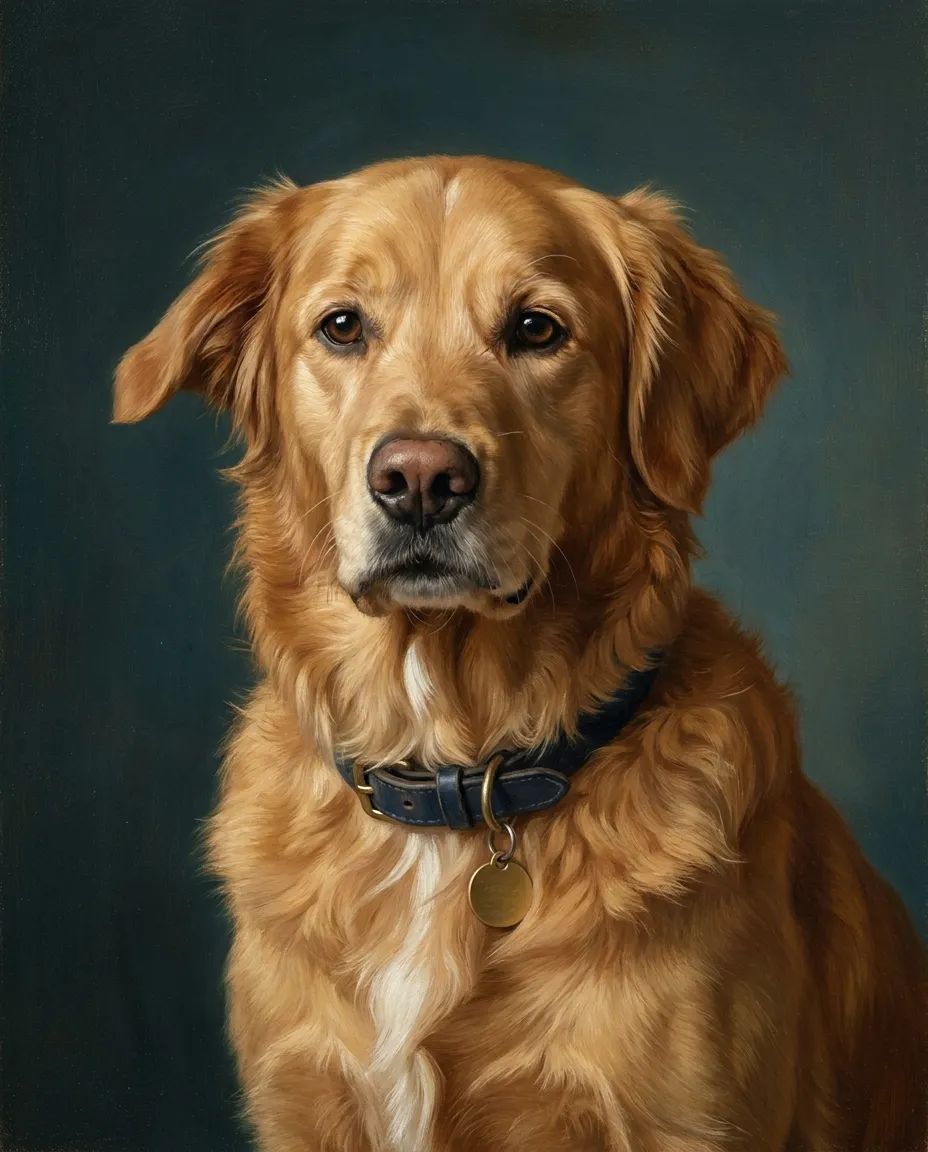
Prompt style example generated from text, not a photo-to-photo likeness test. The specific coat markings, folded ear, navy collar, and brass tag were named before the oil-painting direction.
The first result is a draft, not a verdict. If the markings disappear, reduce the number of scene ideas. Ask for a simple background and describe the missing feature once, precisely. If an eye color or ear shape changes, regenerate from the same reference rather than switching to an unrelated photo.
Pick a style for its final use, not just its name
A style that looks exciting in a small preview can be awkward when it becomes a framed print or a profile image. Choose the destination first:
Oil painting: Good for a framed gift or memorial because fur texture and a quiet background leave room for the face.
Graphic poster: Good for an avatar, card, sticker, or small print because a limited palette stays legible at reduced size.
Cartoon: Good for playful social posts, provided the prompt still names markings that distinguish the pet.
Soft watercolor: Good for stationery and lighter home decor, but check that pale fur does not fade into the background.
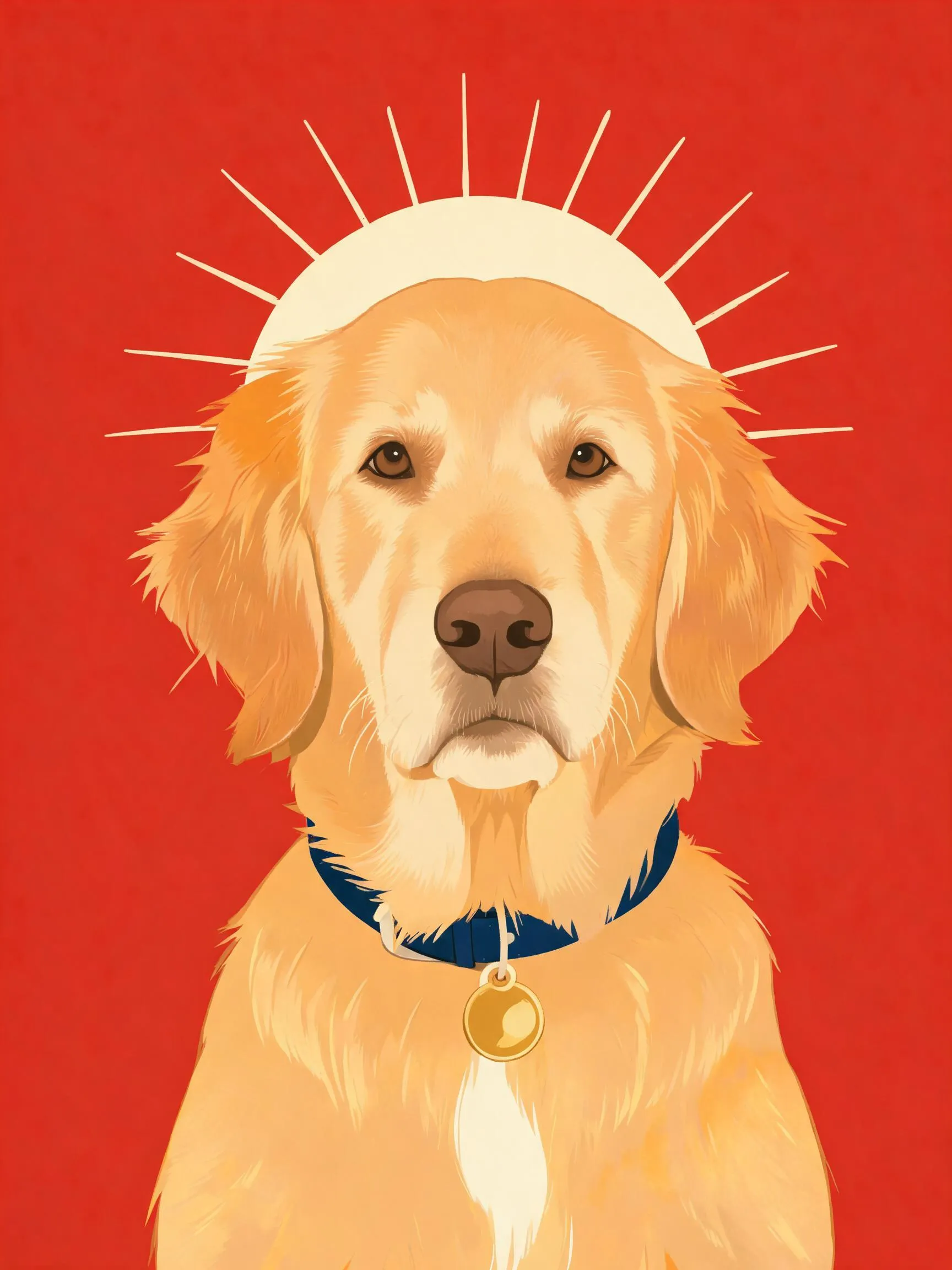
Prompt style example generated from text, not a likeness test. The art direction changed to a flat poster, while the same dog description remained in the prompt.
Do not ask for a style that depends on a living artist's name. Describe visible qualities instead: "layered oil brushstrokes," "flat cream and brick-red shapes," or "light watercolor wash." You will get a clearer brief and retain more control over the result.
Check the file before you print or share it
Download the largest available file first. Then open it at 100% zoom and make one deliberate pass through these details:
Identity: Are the eyes, muzzle pattern, ear shape, and any named accessory still correct?
Anatomy: Check paws, whiskers, teeth, collar hardware, and the edge where fur meets the background.
Crop: Leave enough space around ears and paws for the frame, card edge, or social-media crop you plan to use.
Size: For a practical 300 ppi print target, divide the pixel dimension by 300. A 2400-pixel-wide file is roughly 8 inches wide at 300 ppi; a 1200-pixel-wide file is closer to 4 inches. This is a print guideline, not a guarantee of visual quality.
Rights: For a paid product, advertising, or merchandise run, read the selected tool's current terms. Adobe describes a commercial-use position for its own Firefly models, but that statement does not automatically transfer to another provider or to a third-party model inside a tool.
If the image needs a larger print size, upscale only after you have a portrait whose face and markings are correct. Enlarging an image cannot repair a changed eye, a missing white patch, or a distorted collar tag.
FAQ
Is an AI pet portrait generator really free?
Some are free to start, but the allowance varies. Pixelbin states a monthly free portrait limit, Fotor mentions limited new-user credits, DreamPets says it is free to try, and Adobe provides free daily generations. Check the current account screen before you generate multiple variations.
How do I create an AI portrait of my pet?
Upload one clear photo, list three recognizable features, choose a style, and generate. Inspect the face and markings at full size, then adjust the prompt or reference photo before downloading the final version.
Can I print an AI pet portrait?
Yes, when the tool permits a sufficiently large download and its terms fit your intended use. Check the image dimensions, crop, fine details, and use rights before ordering a print.
Does this work for pets other than dogs and cats?
Usually, yes. Adobe specifically lists birds, rabbits, lizards, guinea pigs, snakes, goats, and chickens alongside dogs and cats. With unusual pets, include species-specific features such as beak shape, shell pattern, feather colors, or horn shape in the prompt.