
AI video generation is moving from simple text-to-video clips toward more controlled creative workflows. Veo 3.1 is an important update because it gives creators more ways to control the scene, sound, subject consistency, camera movement, and video continuity.
You can try Veo 3.1 directly with AIReiter here:
AIReiter Veo 3.1 AI Video Generator
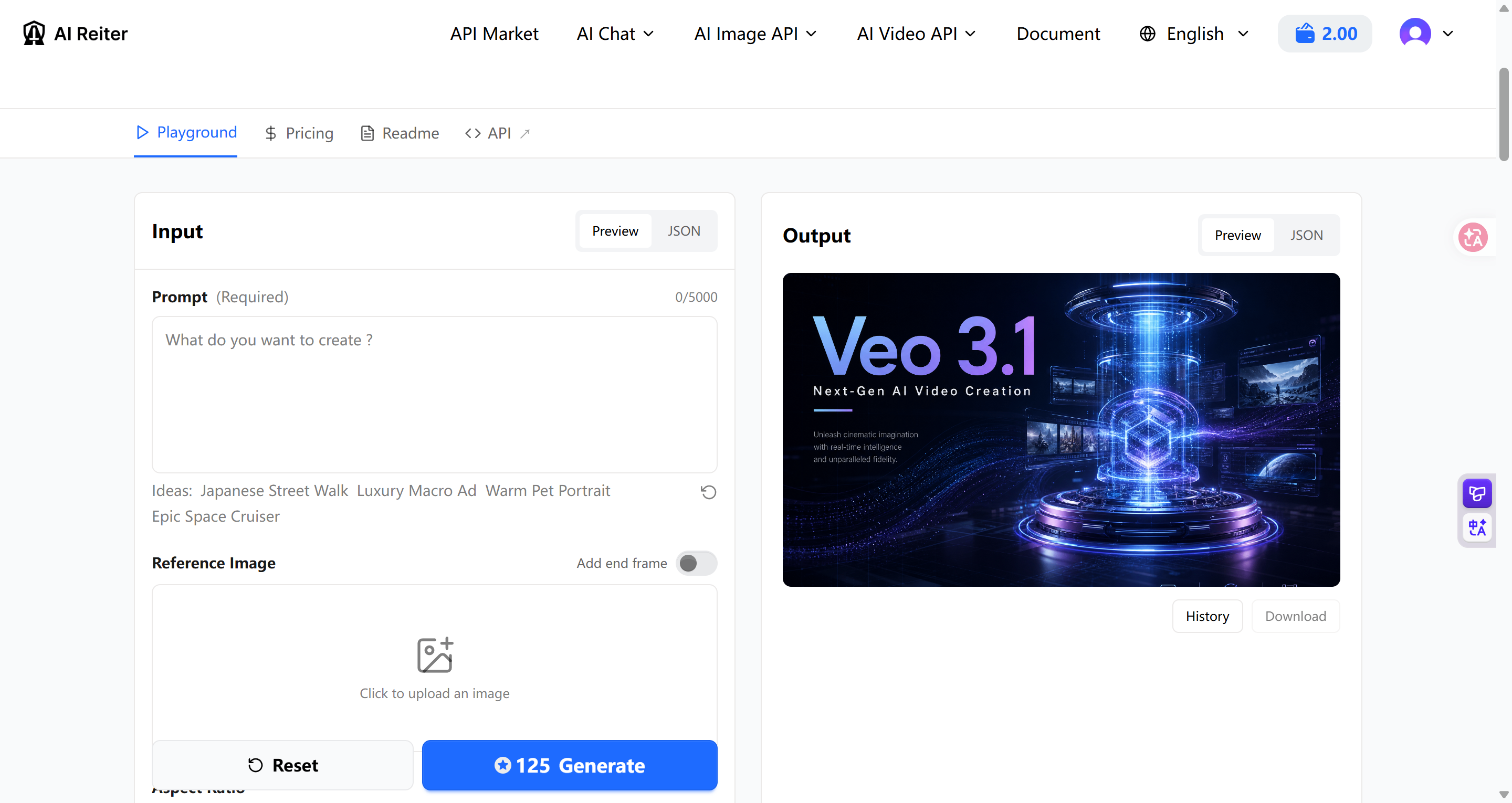
Recommended alt text:
AIReiter Veo 3.1 AI video generator interfaceWhat Is Veo 3.1?
Veo 3.1 is Google’s updated AI video generation model for creating videos from text prompts, images, and supported video workflows.
For creators, the main value of Veo 3.1 is not only better-looking video. The bigger benefit is control. You can describe the subject, action, camera movement, lighting, audio, and visual style in the prompt. You can also use reference images, scene extension, and first-and-last-frame generation to guide the result more precisely.
Veo 3.1 is useful for:
Product videos
Short video ads
Social media videos
Character animation
Cinematic concept clips
Brand storytelling
App or software demos
AI video creative testing
What's New in Veo 3.1?
Veo 3.1’s most useful updates can be grouped into six areas: native audio, better prompt following, reference images, scene extension, first-and-last-frame generation, and vertical video workflows.
New Feature | What It Means | Why It Matters for Creators |
Native audio | Veo 3.1 can generate video with sound | Less need to add music, dialogue, or sound effects later |
Better prompt following | It can follow scene, action, camera, and style instructions more closely | Results are closer to a real video brief |
Reference images | You can use images to guide a character, product, or scene | Better visual consistency |
Scene extension | You can continue a previously generated video | Easier to build longer scenes |
First-and-last-frame generation | You can guide the starting and ending frames | Better for transitions, reveals, and transformations |
Vertical video | Supports mobile-first 9:16 workflows | Better for TikTok, Reels, and Shorts |
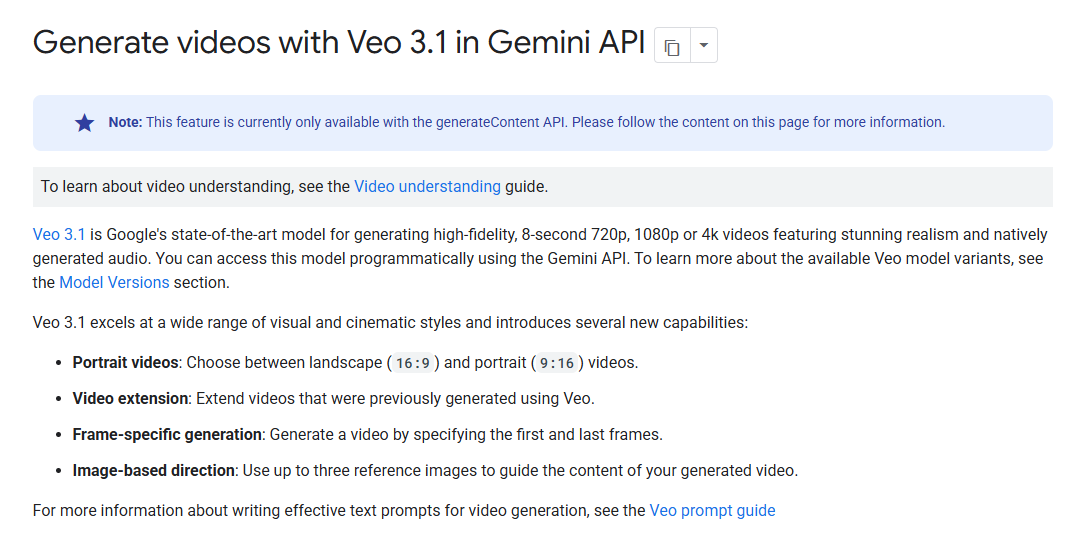
Recommended alt text:
Google Veo 3.1 new features native audio reference images scene extension1.Native Audio Makes Veo 3.1 Videos Feel More Complete
Many AI video tools generate silent clips first. Then creators have to add music, sound effects, ambience, or dialogue in a separate editing tool.
Veo 3.1 makes audio part of the generation process. That means your prompt should describe both what the viewer sees and what the viewer hears.
Weak prompt:
A man walks through a rainy cyberpunk street.Better Veo 3.1 prompt:
A cinematic night scene of a man walking through a rainy cyberpunk street, neon signs reflecting on the wet pavement, slow tracking shot, soft footsteps, distant traffic ambience, rain hitting metal rooftops, and low atmospheric synth music.This prompt gives the model more useful context. It describes the visual scene, the camera movement, the environment, and the audio direction.
Native audio is especially useful for:
Dialogue scenes
Product ads
Cinematic trailers
Social media hooks
Story videos
Game-style scenes
Brand videos
Explainer clips
When using Veo 3.1 in AIReiter, add at least one audio detail to the prompt, such as “soft background music,” “distant city ambience,” “subtle product click sound,” or “calm voiceover.”
2.Prompt Following Is Closer to a Real Video Brief
A video prompt is more complex than an image prompt. An image prompt describes a single frame. A video prompt needs to describe motion, timing, camera direction, sound, and mood.
A weak prompt is:
A product video of a smartwatch.A stronger Veo 3.1 prompt is:
A premium product video of a black smartwatch on a matte stone surface, slow camera push-in, soft studio lighting, realistic reflections on the glass screen, subtle dust particles in the air, clean luxury technology commercial style, calm electronic background music.This second prompt works better because it gives the model specific instructions:
Prompt Element | Example |
Subject | black smartwatch |
Scene | matte stone surface |
Camera movement | slow camera push-in |
Lighting | soft studio lighting |
Material detail | realistic reflections |
Style | luxury technology commercial style |
Audio | calm electronic background music |
This is why Veo 3.1 is more practical for real creative work. Instead of writing a vague sentence, you can write the prompt like a short production brief.
3.Reference Images Improve Product and Character Consistency
AI video often struggles with consistency. A product may change shape, a character may look different between clips, or a visual style may drift from the original idea.
Reference images help reduce that problem. You can use an image to guide the appearance of a product, character, object, or scene.
Reference images are useful for controlling:
Product appearance
Character design
Object shape
Brand style
Scene composition
Background direction
Material and color
For product videos, upload a product image first, then describe the camera movement, lighting, and commercial style. This is usually more reliable than using text alone.
Example reference image prompt:
Use the uploaded product image as the main subject. Create a cinematic 8-second product video of the bottle standing on a wet black stone surface, slow camera rotation, dramatic side lighting, water droplets on the surface, premium skincare commercial style, soft ambient music, realistic shadows and reflections.This workflow is useful for e-commerce, ad creative testing, brand content, and character animation.
4.Scene Extension Helps Turn Short Clips into Longer Sequences
Many AI video tools generate short clips. Short clips are useful for testing ideas, but they can feel limiting when you want to create a full ad, story sequence, or product reveal.
Scene extension helps solve this problem. Instead of asking the model to create a complex sequence all at once, you can generate one shot first and then extend from it.
A more stable workflow looks like this:
Step | What to Do |
1 | Generate a clear opening shot |
2 | Check the subject, camera, and style |
3 | Extend the video with a new prompt |
4 | Add a product reveal, character action, or camera change |
5 | Repeat until the sequence feels complete |
Example first prompt:
A cinematic shot of a futuristic electric car parked in a dark studio, soft blue rim light, slow camera push-in, reflective floor, premium automotive commercial style.Example extension prompt:
Continue the shot as the headlights turn on, the camera moves slowly around the front of the car, soft electric hum, dramatic lighting, luxury technology mood.This is easier to control than trying to force too many actions into one short clip.
5.First-and-Last-Frame Generation Helps with Transitions and Reveals
First-and-last-frame generation lets you guide the starting and ending frames of a video. The model then creates the motion between those two frames.
This is useful when you already know how the video should begin and end.
Good use cases include:
Product reveal transitions
Before-and-after clips
Character movement
Fashion transformation videos
Logo reveal videos
Scene changes
App interface demos
For marketing videos, this is especially useful for product reveals, before-and-after demos, and visual transitions.
6.Vertical Video Is Better for Short-Form Platforms
Many videos today are made for TikTok, Instagram Reels, YouTube Shorts, and mobile ads. For these platforms, vertical video is often more useful than landscape video.
Format | Best For |
16:9 landscape | YouTube, websites, product demos, presentations |
9:16 vertical | TikTok, Reels, Shorts, mobile ads |
If your goal is social traffic, start with a 9:16 vertical format. If your goal is a website hero video, landing page asset, or product walkthrough, 16:9 landscape may be better.
Veo 3.1 vs Veo 3: What Changed?
Veo 3.1 is not just a name change. The main difference is that it gives creators more control over the final video.
Feature | Veo 3 | Veo 3.1 |
Text-to-video | Supported | Supported |
Image-to-video | Supported | Better suited for reference-image workflows |
Native audio | Supported | Better integrated with the visual prompt |
Prompt following | Good | Better for complex camera and narrative instructions |
Reference images | More limited | Better for product and character consistency |
Scene extension | More limited | Better for continuous video workflows |
First-and-last-frame control | More limited | Better for transitions and reveals |
Vertical video | Workflow dependent | Better suited for mobile-first content |
In simple terms, Veo 3 can generate impressive short videos. Veo 3.1 is more useful when you need stronger control over the scene, sound, camera movement, and video structure.
Veo 3.1, Veo 3.1 Fast, and Veo 3.1 Lite: Which One Should You Use?
Veo 3.1 now has different versions for different needs. To avoid repeating the dedicated Fast and Lite pages, this section only gives a short overview.
Version | Best For | Main Advantage |
Veo 3.1 | Final videos, cinematic quality, advanced control | Best overall quality and control |
Veo 3.1 Fast | Prompt testing and fast iteration | Faster generation |
Veo 3.1 Lite | Lower-cost, high-volume workflows | Better cost efficiency |
If speed is your priority, read our Veo 3.1 Fast guide.
If lower-cost, large-scale generation is your priority, read our Veo 3.1 Lite guide.
When Should You Use Veo 3.1?
Use Veo 3.1 when quality, control, and final output matter more than speed or cost.
Veo 3.1 is a good fit for:
Final brand videos
Product ads
Cinematic clips
Website hero videos
Story-driven videos
Videos that need visual consistency
Videos that need sound and scene control
If you are still testing creative directions, starting with the Fast version may save time. If you need many simple videos at lower cost, the Lite version may be more practical.
AIReiter Workflow Tips for Veo 3.1
When using Veo 3.1 in AIReiter, do not start with an overly complicated prompt. A more reliable approach is to build the prompt step by step.
Step | What to Add |
1 | Subject and action |
2 | Scene and camera movement |
3 | Lighting and visual style |
4 | Audio description |
5 | Reference image instructions if needed |
For example, if you are creating a product ad, start with a simple product shot first. Check whether the product appearance, material, and camera direction are correct. Then add sound, background details, transitions, or scene extension.
Product Video Prompt Template
Use the uploaded product image as reference. Create a cinematic product video of [product] in [scene], with [camera movement], [lighting style], [material details], [commercial style], and [audio].This template is more useful than simply writing “create a product video” because it gives the model specific visual and audio instructions.
Best Use Cases for Veo 3.1
6.1 Product Videos
Veo 3.1 works well for product videos because the prompt can describe lighting, camera movement, reflections, materials, and sound.
Example prompt:
A cinematic product video of a silver wireless earbud case opening slowly on a reflective black surface, soft studio lighting, macro close-up, smooth camera rotation, premium technology commercial style, subtle electronic sound effects, realistic shadows.Recommended alt text:
Veo 3.1 product video example generated with AIReiter6.2 Social Media Videos
For TikTok, Reels, and Shorts, include the 9:16 format, a clear visual hook, and an audio mood.
Example prompt:
A vertical 9:16 video of a futuristic coffee cup glowing softly on a desk at sunrise, steam rising in slow motion, warm cinematic lighting, cozy morning atmosphere, soft lo-fi background music, smooth camera push-in.6.3 Cinematic Story Scenes
Veo 3.1 is useful for narrative prompts because it can follow mood, pacing, camera movement, and audio instructions.
Example prompt:
A cinematic night scene of a lone astronaut walking across a quiet desert under two moons, slow wide-angle tracking shot, dust moving in the wind, distant radio static, emotional orchestral background, realistic lighting and shadows.6.4 Brand Ads
Brand ads need a clear product mood, visual style, and user emotion. Veo 3.1 can help test different ad directions.
Example prompt:
A premium commercial video for a minimalist productivity app, a clean desk setup with a laptop showing a modern dashboard, morning sunlight through the window, smooth camera slide, calm focused mood, soft keyboard sounds, clean tech brand style.6.5 Character Videos
For character videos, use a reference image and clearly ask the model to keep the character appearance consistent.
Example prompt:
Use the uploaded character image as reference. Create an 8-second cinematic animation of the character walking through a glowing forest, fireflies in the air, soft fantasy lighting, gentle camera follow, emotional background music, consistent character appearance.Veo 3.1 Prompt Formula
A practical Veo 3.1 prompt can include six parts:
Subject + Action + Scene + Camera Movement + Visual Style + AudioExample:
A black luxury smartwatch floating above a dark reflective surface, slowly rotating as the camera pushes in, soft studio lighting, realistic reflections, premium technology commercial style, subtle electronic sound effects and calm background music.You can also add:
Aspect ratio
Duration
Mood
Lighting style
Material details
Lens style
Motion speed
Sound effects
Dialogue
Reference image instructions
Common Mistakes When Using Veo 3.1
Mistake 1: Only Describing the Subject
Weak prompt:
A video of a robot.Better prompt:
A cinematic 8-second video of a small delivery robot crossing a rainy city street at night, neon reflections on the ground, slow tracking shot, soft mechanical wheel sounds, distant traffic ambience, realistic lighting.Mistake 2: Forgetting Audio
Veo 3.1 supports native audio, so your prompt should include sound details.
You can add:
Ambient sound
Dialogue
Footsteps
Rain
Wind
Product clicks
Music mood
Voice tone
Mistake 3: Adding Too Many Events to One Short Clip
A short video should usually focus on one clear action.
Avoid this:
Show a car driving through a city, then a mountain road, then a beach, then a logo reveal.Use this instead:
A cinematic shot of an electric car driving through a neon city street at night, slow side tracking shot, wet road reflections, soft electric engine sound, premium automotive ad style.Then use scene extension for the next part.
Mistake 4: Choosing the Wrong Version
Do not use the same version for every task.
Need | Better Option |
Final quality and control | Veo 3.1 |
Fast prompt testing | Veo 3.1 Fast |
Lower-cost batch generation | Veo 3.1 Lite |
How to Use Veo 3.1 on AIReiter
You can use Veo 3.1 on AIReiter here:
Use AIReiter Veo 3.1 to Generate AI Videos
Basic workflow:
Open the Veo 3.1 tool.
Enter your video prompt.
Add camera movement, lighting, style, and audio details.
Generate the video.
Review the result.
Refine the prompt and generate again.
For better results, change one thing at a time. First adjust the subject and camera movement. Then improve the lighting. Finally, add audio and style details.
Final Thoughts
Veo 3.1 is an AI video update focused on practical creative workflows. The most useful improvements are native audio, reference images, scene extension, first-and-last-frame generation, vertical video support, and better prompt following.
Use Veo 3.1 when you need final quality and stronger creative control. Use the Fast version when you are testing prompts quickly. Use the Lite version when you need lower-cost batch generation.
You can start creating AI videos here: