
Quick Answer
To make a lyric video for TikTok, turn one short song section into a 9:16 clip with large readable lyric lines, reviewed timing, and a phone-size preview before upload. The fastest workflow is to prepare the exact lyrics first, then use either TikTok/CapCut, a template editor, or an AI-assisted lyric video workflow depending on how much manual control you need.
Prepare The Song Section And Lyrics
Start with a TikTok-sized hook, not the full song. A practical first version is a chorus, drop, or quotable 15-30 second section because it is easier to time, easier to preview, and more likely to make sense without the rest of the track.
Collect these inputs before opening a tool:
Input | What to prepare |
|---|---|
Song section | Start and end time for the hook, such as 0:42-1:06. |
Exact lyrics | Proofread names, slang, ad-libs, and repeated words. |
Visual direction | Minimal, kinetic text, handwritten overlay, karaoke-style, or fan-edit style. |
Platform format | 9:16 vertical for TikTok, Shorts, and Reels; 16:9 for wider YouTube visualizers. |
Prepared lyrics are often better than raw automatic captions for music. Singing, layered vocals, effects, and background ad-libs can confuse transcription tools. If you already have the correct lyric text, paste it and use the timing controls or editor timeline to match the vocal phrase.
Also decide where the audio is coming from before you publish. If you are promoting your own song, use the official audio or the upload path you control. If you are making a fan edit, check whether the track is available inside TikTok's music library and avoid presenting copyrighted lyrics or audio as your own work.
Split Lyrics For A Phone Screen
In a lyric video, the words are the main graphic. Give them more space than ordinary captions.
Use these line rules:
Keep one idea per line.
Show one or two lyric lines at once.
Avoid lyric blocks that wrap into three or four rows.
Keep important words near the center or upper-middle area.
Leave breathing room on the right side for TikTok buttons.
Avoid placing key words in the lower caption area.
Example split:
Too dense:
I keep running through the city just to find a little silence

Better:
I keep running through the city
just to find a little silence
If a line still feels crowded, split it around a breath, beat, or emotional pause. For fast vocals, it is better to show fewer words per timing block than to make the font too small.
Choose Your Workflow: TikTok, CapCut, Template Editor, Or AI
There are several ways to make a lyric video online for TikTok. Choose based on control, speed, and how much editing you want to do.
Workflow | Best for | Manual effort | Timing control | Notes |
|---|---|---|---|---|
TikTok native text | Simple text-over-video posts | Low | Limited | Fast, but not ideal for polished lyric timing. |
CapCut or manual editor | Hands-on timeline and text animation | High | High | Best when you want detailed control. |
Canva, Adobe Express, VEED, or Kapwing-style editor | Template-based lyric clips | Medium | Medium | Useful if you want browser editing and visual templates. |
AI-assisted lyric generator | Fast lyric-to-video drafts | Lower | Review-based | Useful when you want to avoid building every text layer manually. |
If speed matters more than frame-level control, an online tiktok lyric video generator is one option. AIReiter is an independent AI-assisted workflow, not an official TikTok or YouTube product. In that type of workflow, the concrete steps are: paste the lyrics, review auto timing, choose a motion style, select a TikTok-friendly format such as 9:16, and add optional audio or reference media when the model needs source material.
Use a manual editor when you need exact typography, brand layouts, complex animation, or a final release asset. Use an AI-assisted or template workflow when the job is a short TikTok, Shorts, Reels, or music promo clip that can be reviewed and adjusted quickly.
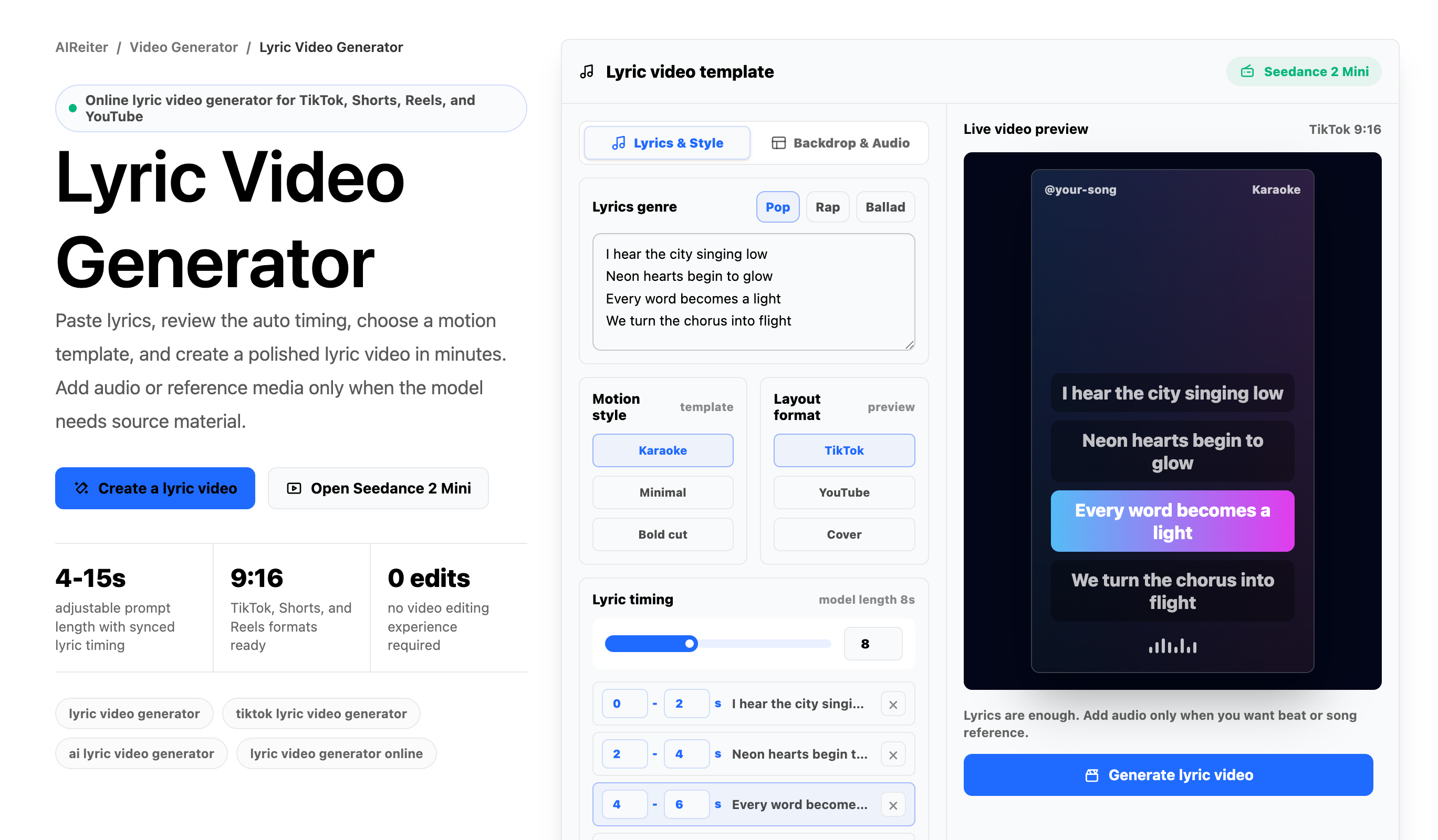
Before generating, confirm the lyric text, 9:16 layout, timing rows, and preview.
Fastest Recommended Path
For most TikTok lyric videos, choose the workflow by constraint:
Situation | Recommended path |
|---|---|
Posting a few lyric lines immediately | TikTok native text |
Need precise timing and text animation | CapCut or another manual editor |
Need a designed layout quickly | Canva, Adobe Express, VEED, or Kapwing-style template editor |
Need a fast first draft from prepared lyrics | AI-assisted generator, then manual review |
How To Make It In Common Tools
TikTok Native Editor
Use TikTok's built-in text tools only when the lyric video is very simple:
Add or select the sound first, so the text timing follows the audio section you will post.
Import or record the vertical video.
Add one short lyric block with the text tool.
Use the text duration or timeline control to decide when that lyric appears and disappears.
Duplicate the text style for the next lyric line so font, size, and placement stay consistent.
Repeat for the next line instead of pasting the full verse at once.
Preview with the right-side buttons and lower caption area visible before publishing.
Best if: you only need a few lyric lines and want to post directly inside TikTok.
CapCut Or A Manual Editor
Use CapCut or another manual editor when timing control matters:
Create a 9:16 project before adding text.
Import the song section or clip.
Add text layers for each lyric block, or use captions/auto captions only if the vocals are clean enough.
Duplicate the text layer when the style should stay consistent.
Drag each text layer's start and end points to match the vocal phrase.
Keep text inside the vertical safe area instead of near the right edge.
Apply animation only after the line timing feels right.
Export or share as a vertical video.
Best if: you want the most control over text duration, animation, and lyric placement.
Canva, Adobe Express, VEED, Or Kapwing-Style Editors
Use a template editor when visual layout matters more than fine timeline control:
Search for a lyric video or music video template.
Choose a vertical layout or resize the design to 9:16.
Upload the song section, background visual, or cover art.
Replace placeholder text with your prepared lyric lines.
Adjust page duration, scene duration, or subtitle timing depending on the editor.
Export the vertical version and replay it once at phone size.
Best if: you want a designed look quickly and can accept moderate timing control.
AI-Assisted Generator
Use an AI lyric video generator when you already have the lyric text and want a faster first draft:
Paste prepared lyrics instead of relying only on transcription.
Choose 9:16 for TikTok.
Pick a motion direction such as karaoke, minimal, or bold text.
Add audio or reference media only if the workflow needs source material.
Generate the first version.
Replay the result to catch late lines, crowded phrases, or text that lands under the TikTok interface.
Best if: you want to avoid building every text layer manually and can review the generated timing before posting.
Use this vertical sample as a phone-size review reference: check readability, motion, and line changes after one normal replay.
Worked Example: A 24-Second Chorus Clip
Suppose the chorus runs from 0:42 to 1:06. Instead of placing the full chorus on screen, split it into four timing blocks:
0:42-0:47  I keep running through the city
0:47-0:52  just to find a little silence
0:52-0:58  every streetlight knows your name
0:58-1:06  but I still can't say goodbye
For TikTok, those blocks could become:
Time | On-screen lyric | Placement note |
|---|---|---|
0:42-0:47 | I keep running through the city | Center or upper-middle, large text. |
0:47-0:52 | just to find a little silence | Same position, away from the lower caption area. |
0:52-0:58 | every streetlight knows your name | Use a calmer background if the text crosses two lines. |
0:58-1:06 | but I still can't say goodbye | Hold slightly longer if this is the emotional line. |
This example gives you a timing map before you edit. If the last line feels rushed, split it into two blocks. If the first line appears after the vocal starts, move it earlier. If two lines compete visually, keep only the current line on screen.
Review Timing Without Chasing Frame-Level Perfection
Timing review matters most on fast vocals, chorus pauses, repeated words, and beat drops. Do one full replay without pausing. If a lyric appears about half a second late, move the timing block earlier. If a fast rap line cannot be read before it disappears, split it into two shorter blocks. If a chorus line is meant to hit on the drop, make the text appear slightly before or exactly on that beat instead of after it.
Common fixes:
Problem | What to change |
|---|---|
Lyrics appear late | Move the line earlier or shorten the previous timing block. |
Text is too small | Split the line, reduce words per block, or use a cleaner background. |
Auto captions are wrong | Paste prepared lyrics instead of relying on transcription. |
Audio may be muted after upload | Use official TikTok sounds or audio you have rights to use. |
Text sits under buttons | Move lyrics toward the center or upper-middle area. |
Pick A Style That Keeps Lyrics Readable
Choose the visual style after the lyric split, not before. A style that looks impressive in a blank preview may fail once real lyric lines appear.
Good TikTok lyric styles include:
Minimal center-screen text: clean font, large words, restrained background motion.
Kinetic typography: stronger movement on beat changes or emotional words.
Handwritten overlay: useful for acoustic, diary-style, or fan-edit clips.
Karaoke-style emphasis: current line or phrase gets the strongest visual weight.
Keep the text large enough to read at phone size. Use strong contrast between text and background, and test the busiest second of the video rather than only the first frame. If the background has faces, objects, or fast motion behind the words, simplify the background or add a cleaner text area.
Bad style choice: thin white text over bright concert footage while the camera moves quickly. Better choice: bold text with a subtle shadow over a dimmed or less detailed background, especially during dense lyric lines.
Export And Pre-Upload QA
When your tool asks for export settings, choose a vertical 9:16 output. A 1080x1920 MP4 is a common practical export choice for TikTok-style posts when that option is available. If the tool only asks for aspect ratio, choose 9:16 and then preview the exported file on a phone-sized screen.
Before uploading, check:
First lyric appears before the hook peak.
No line wraps into too many rows.
Right-side buttons will not cover important words.
The lower caption area does not hide the main lyric.
The busiest background moment still leaves text readable.
Timing feels natural after one complete replay.
The clip still makes sense without hearing the full song.
For short lyric videos, fix line breaks and placement before adding extra effects.
FAQ
Do I need CapCut to make a TikTok lyric video?
No. CapCut is useful for manual control, but template editors and AI-assisted lyric workflows can also work if you do not want to place every text layer by hand.
Can an AI lyric video generator sync lyrics automatically?
It can assist with timing, but you should review late line starts, long holds, fast vocals, repeated phrases, and text that lands under TikTok UI areas.
How long should a TikTok lyric video be?
Start with a 15-30 second hook, chorus, or quotable line. A short section is easier to time and easier to test before making longer YouTube or promo versions.
Should I use original audio or a TikTok library sound?
Use your official audio when promoting your own song. For fan edits or commercial accounts, check whether the track is available in TikTok's music library and be prepared to replace audio if the upload is muted.
Can I reuse the same lyric video for YouTube or Reels?
The 9:16 version can often work for Reels and Shorts. For a standard YouTube upload, adapt the layout to 16:9 so the lyrics and visuals have enough horizontal space.